
You know that Word allows you to insert pictures in your document. Most pictures are rectangular in shape. What happens if you want your picture to be oval or some other non-rectangular shape, however?
Perhaps the most universal solution is to use a picture-editing program to make your edits to the picture. For instance, you could use Adobe PhotoShop or Paint Shop Pro or Microsoft's Photo Editor to change the picture directly, before placing it into Word. This approach will work with any version of Word.
If you don't have access to picture-editing software, you can use AutoShapes within Word to create your oval (or some other shape), and then fill that AutoShape with your picture. To do this, follow these steps:
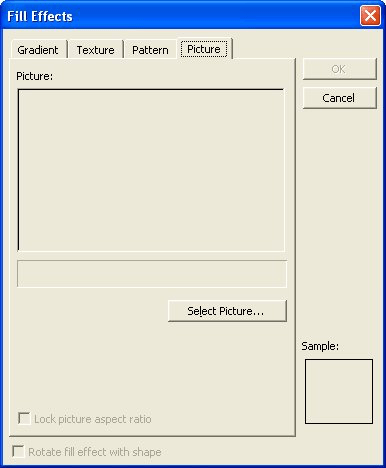
Figure 1. The Picture tab of the Fill Effects dialog box.
Once the picture appears in the shape, you can adjust the size of the shape as you normally would to make it appear as desired. You may need to play with this method of creating pictures a bit, as Word has been known to distort the pictures slightly. With a little practice, however, you may get exactly the effect you desire, without resorting to using an external picture-editing program.
There is also another way to place a picture within an oval in Word (any version), but it requires just a bit more work. In this approach, you really use two images: your original picture and an AutoShape. Follow these general steps:
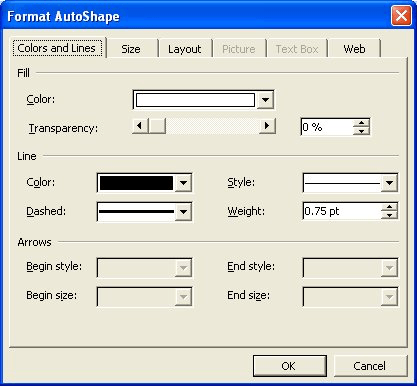
Figure 2. The Format AutoShape dialog box.
This can be viewed as a brute-force method of placing your photo in an oval, but it does have the advantage that the picture is not distorted in the oval at all.
WordTips is your source for cost-effective Microsoft Word training. (Microsoft Word is the most popular word processing software in the world.) This tip (1859) applies to Microsoft Word 97, 2000, 2002, and 2003.

Create Custom Apps with VBA! Discover how to extend the capabilities of Office 365 applications with VBA programming. Written in clear terms and understandable language, the book includes systematic tutorials and contains both intermediate and advanced content for experienced VB developers. Designed to be comprehensive, the book addresses not just one Office application, but the entire Office suite. Check out Mastering VBA for Microsoft Office 365 today!
Ever want to expand the mail merge feature to include graphics? Merging graphics into your document is easy but requires ...
Discover MoreEver insert a picture and it won't display in your document? It could be due to some of the display settings in Word. ...
Discover MoreNeed your hide some of the outside edges of a graphic? You can instruct Word to crop (or hide) those outside edges by ...
Discover MoreFREE SERVICE: Get tips like this every week in WordTips, a free productivity newsletter. Enter your address and click "Subscribe."
There are currently no comments for this tip. (Be the first to leave your comment—just use the simple form above!)
Got a version of Word that uses the menu interface (Word 97, Word 2000, Word 2002, or Word 2003)? This site is for you! If you use a later version of Word, visit our WordTips site focusing on the ribbon interface.
Visit the WordTips channel on YouTube

FREE SERVICE: Get tips like this every week in WordTips, a free productivity newsletter. Enter your address and click "Subscribe."
Copyright © 2026 Sharon Parq Associates, Inc.

Comments