
Phyllis notes that she is unable to access the split view of her Word document; specifically, "Split" does not show up in the Window menu. The "Remove Split" option is grayed out, and she does not see a double bar anywhere on the vertical navigation scroll.
There are two possibilities: either the document view is currently split or it is not currently split. (Makes sense, huh?) The fact that "Split" is not available from the menu and that "Remove Split" is visible (even if not accessible) would lend support to the document already being split. But why, then, isn't the split immediately obvious from what is shown on the screen?
Word has several different viewing modes, and a split screen is not available in all of them. For instance, if you are viewing the document in Print Preview or in the Document Map, splitting doesn't show. Similarly, any split may not show if you are working in the header or footer of the document or if you have one of the other panes open, such as the Reviewing pane.
To see if the screen is really split, make sure that these special display modes are turned off and view the document in one of the regular modes, such as Normal, Page Layout, or Print Layout. The exact wording of these views depends on your version of Word, but they are accessible from the buttons at the bottom of the document window.
Another thing you will want to do check is to make sure that the vertical scroll bar is visible on the screen. It is on this scroll bar that the double-bar used for splitting is displayed. To make sure the scroll bar is displayed, follow these steps:
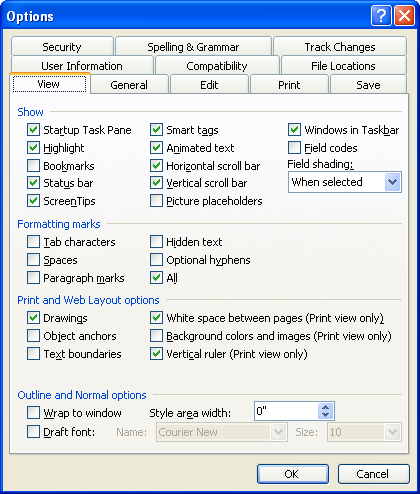
Figure 1. The View tab of the Options dialog box.
Finally, remember that you can use Ctrl+Alt+S to split or unsplit the screen. As long as you are in a viewing mode that will allow the split to be displayed, pressing the shortcut once displays the split and pressing again closes the split.
If none of these ideas work, then you may need to consider reinstalling Word again to correct whatever is causing the problem. You should only do so, however, if the split is not available in all your documents. If it is only unavailable in a single document, then there is a strong possibility that you have a corrupted document and you should follow the steps for dealing with corrupted documents that are outlined in other issues of WordTips.
WordTips is your source for cost-effective Microsoft Word training. (Microsoft Word is the most popular word processing software in the world.) This tip (6903) applies to Microsoft Word 97, 2000, 2002, and 2003.

Do More in Less Time! An easy-to-understand guide to the more advanced features available in the Microsoft 365 version of Word. Enhance the quality of your documents and boost productivity in any field with this in-depth resource. Complete your Word-related tasks more efficiently as you unlock lesser-known tools and learn to quickly access the features you need. Check out Microsoft 365 Word For Professionals For Dummies today!
When looking at your document in Draft view, you may want Word to use a larger font than what it normally does. Here's ...
Discover MoreGetting rid of unwanted folders in Windows.
Discover MoreWhen selecting options within menus, Word frequently displays additional options in dialog boxes. While customizing the ...
Discover MoreFREE SERVICE: Get tips like this every week in WordTips, a free productivity newsletter. Enter your address and click "Subscribe."
2021-09-07 14:15:26
Steven Wolff
I had the split screen problem. In my case I had the thumbnail view of the page. It would not split. I turned the thumbnails off and just had the main document showing and that worked.
2015-02-26 17:19:41
Jennifer
This was very helpful! Thank you for the information!
2015-01-27 04:40:20
Guillaume
Another solution which works in Word 2007 is to close the Document Map. This will activate the Split button.
(Source: http://tinyurl.com/2007split)
Got a version of Word that uses the menu interface (Word 97, Word 2000, Word 2002, or Word 2003)? This site is for you! If you use a later version of Word, visit our WordTips site focusing on the ribbon interface.
Visit the WordTips channel on YouTube

FREE SERVICE: Get tips like this every week in WordTips, a free productivity newsletter. Enter your address and click "Subscribe."
Copyright © 2026 Sharon Parq Associates, Inc.

Comments