
Let's face it—for those of us getting to the bifocal age, the toolbar buttons are sometimes a bit too small. In fact, it is sometimes downright impossible to tell exactly what that is on an icon! (Is that a chain link or a sausage beneath that ball?) This problem seems particularly acute when working with a monitor set to a high resolution.
Fortunately, you can make the toolbars appear a bit larger. Just follow these steps:
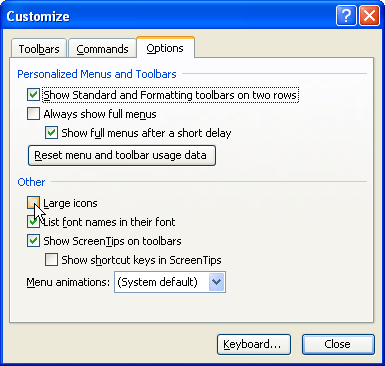
Figure 1. The Options tab of the Customize dialog box.
Notice how the toolbar buttons now seem huge—but you can at least see them! This change doesn't affect just Word, but any Microsoft Office program you have installed on your system.
WordTips is your source for cost-effective Microsoft Word training. (Microsoft Word is the most popular word processing software in the world.) This tip (1881) applies to Microsoft Word 97, 2000, 2002, and 2003.

Discover the Power of Microsoft Office This beginner-friendly guide reveals the expert tips and strategies you need to skyrocket your productivity and use Office 365 like a pro. Mastering software like Word, Excel, and PowerPoint is essential to be more efficient and advance your career. Simple lessons guide you through every step, providing the knowledge you need to get started. Check out Microsoft Office 365 For Beginners today!
A few methods for finding an errant toolbar in Word.
Discover MoreCustomize Word enough, and you may at some point want to set the toolbars back to their original condition. Here's how to ...
Discover MoreIf you don't like where your toolbars are located, just move them around.
Discover MoreFREE SERVICE: Get tips like this every week in WordTips, a free productivity newsletter. Enter your address and click "Subscribe."
There are currently no comments for this tip. (Be the first to leave your comment—just use the simple form above!)
Got a version of Word that uses the menu interface (Word 97, Word 2000, Word 2002, or Word 2003)? This site is for you! If you use a later version of Word, visit our WordTips site focusing on the ribbon interface.
Visit the WordTips channel on YouTube

FREE SERVICE: Get tips like this every week in WordTips, a free productivity newsletter. Enter your address and click "Subscribe."
Copyright © 2026 Sharon Parq Associates, Inc.

Comments