
Store Common Addresses in AutoText Entries

Written by Allen Wyatt (last updated September 7, 2019)

If you write lots of letters, you'll appreciate this one. Store your common address—the ones to whom you write letters the most—in AutoText entries. In this way, you can input just the first (or last) name of the person you need, press F3, and have the address inserted at the top of your letterhead—sure beats typing it out all the time.

To define an address as an AutoText entry, follow these steps:
  1. Select the paragraphs containing the address.
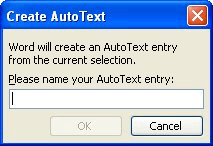
  2. Choose AutoText from the Insert menu, and then New from the resulting submenu. Word displays the Create AutoText dialog box. (See Figure 1.)
  3. Figure 1. The Create AutoText dialog box.

  4. Enter the name you want assigned to the address. For instance, use the last name of the person or the person's title. (The trick is to use something you will easily remember later.)
  5. Click on OK.

WordTips is your source for cost-effective Microsoft Word training. (Microsoft Word is the most popular word processing software in the world.) This tip (1894) applies to Microsoft Word 97, 2000, 2002, and 2003.
Author Bio

Allen Wyatt

With more than 50 non-fiction books and numerous magazine articles to his credit, Allen Wyatt is an internationally recognized author. He is president of Sharon Parq Associates, a computer and publishing services company. ...

MORE FROM ALLEN

Combinations for Members in Meetings

Got a large group of people listed in a worksheet and you want to make sure that each person has met with every other ...

Discover More

Quickly Dumping Array Contents

Variable arrays are used quite often in macros. If you use an array once in your macro and then need to reuse it for ...

Discover More

Creating Tent Cards

If you are planning a dinner party or a meeting where guests need to be seated at tables, you may want to create tent ...

Discover More

Learning Made Easy! Quickly teach yourself how to format, publish, and share your content using Word 2021 or Microsoft 365. With Step by Step, you set the pace, building and practicing the skills you need, just when you need them! Check out Microsoft Word Step by Step today!

More WordTips (menu)

Macro-Inserted AutoText Doesn't Set Style

Inserting AutoText from a macro can give unwanted results, particularly when it comes to any style that may be stored ...

Discover More

Using AutoText

AutoText is a timesaving feature that allows you to assign a word, phrase, paragraph, or graphic to a mnemonic name. Type ...

Discover More

AutoText Entries Don't Stick

AutoText can be a great tool, but it is of little worth if you can't get Word to remember the AutoText entries you ...

Discover More
Subscribe

FREE SERVICE: Get tips like this every week in WordTips, a free productivity newsletter. Enter your address and click "Subscribe."

View most recent newsletter.

Comments

If you would like to add an image to your comment (not an avatar, but an image to help in making the point of your comment), include the characters [{fig}] (all 7 characters, in the sequence shown) in your comment text. You’ll be prompted to upload your image when you submit the comment. Maximum image size is 6Mpixels. Images larger than 600px wide or 1000px tall will be reduced. Up to three images may be included in a comment. All images are subject to review. Commenting privileges may be curtailed if inappropriate images are posted.

What is eight more than 6?

There are currently no comments for this tip. (Be the first to leave your comment—just use the simple form above!)


This Site

Got a version of Word that uses the menu interface (Word 97, Word 2000, Word 2002, or Word 2003)? This site is for you! If you use a later version of Word, visit our WordTips site focusing on the ribbon interface.

Videos
Subscribe

FREE SERVICE: Get tips like this every week in WordTips, a free productivity newsletter. Enter your address and click "Subscribe."

(Your e-mail address is not shared with anyone, ever.)

View the most recent newsletter.
