
Please Note: This article is written for users of the following Microsoft Word versions: 97, 2000, 2002, and 2003. If you are using a later version (Word 2007 or later), this tip may not work for you. For a version of this tip written specifically for later versions of Word, click here: Adding Tabs at the Beginning of a Line.
One of the annoying features of Word is that the program assumes that if you press the Tab key at the beginning of a line, you want to indent the line. The program then proceeds to adjust the left margin by the distance of a normal tab stop. While this can be helpful in some circumstances, I can think of many times when I really want the tab character inserted in the document instead of adjusting margin information.
If you want to make sure that Word inserts a tab character, simply press Ctrl+Tab. This will work any time in Word, but is of the most use at the beginning of lines. As an alternative, you can turn off the indent feature completely by following these steps in Word 2002 or Word 2003:
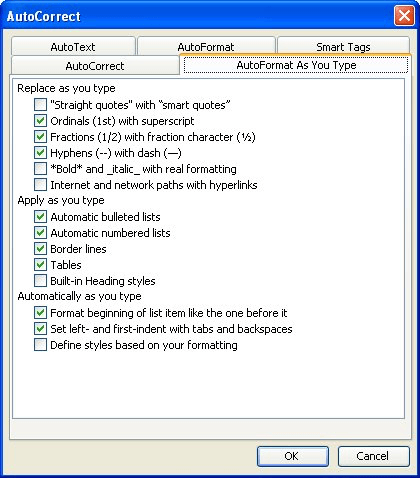
Figure 1. The AutoFormat As You Type tab of the AutoCorrect dialog box.
If you are using Word 97 and Word 2000 you should follow these steps:
WordTips is your source for cost-effective Microsoft Word training. (Microsoft Word is the most popular word processing software in the world.) This tip (1075) applies to Microsoft Word 97, 2000, 2002, and 2003. You can find a version of this tip for the ribbon interface of Word (Word 2007 and later) here: Adding Tabs at the Beginning of a Line.

Discover the Power of Microsoft Office This beginner-friendly guide reveals the expert tips and strategies you need to skyrocket your productivity and use Office 365 like a pro. Mastering software like Word, Excel, and PowerPoint is essential to be more efficient and advance your career. Simple lessons guide you through every step, providing the knowledge you need to get started. Check out Microsoft Office 365 For Beginners today!
Need to indent an entire paragraph from the left margin? It's easy to do using the tool described in this tip.
Discover MoreThose with a publishing, typographic, or design background may understand what leading is, but not how to adjust the ...
Discover MoreImport a file from a source external to Word, and you can end up with a formatting nightmare. One big step is to remove ...
Discover MoreFREE SERVICE: Get tips like this every week in WordTips, a free productivity newsletter. Enter your address and click "Subscribe."
There are currently no comments for this tip. (Be the first to leave your comment—just use the simple form above!)
Got a version of Word that uses the menu interface (Word 97, Word 2000, Word 2002, or Word 2003)? This site is for you! If you use a later version of Word, visit our WordTips site focusing on the ribbon interface.
Visit the WordTips channel on YouTube

FREE SERVICE: Get tips like this every week in WordTips, a free productivity newsletter. Enter your address and click "Subscribe."
Copyright © 2026 Sharon Parq Associates, Inc.
 Please Note:
This article is written for users of the following Microsoft Word versions: 97, 2000, 2002, and 2003. If you are using a later version (Word 2007 or later), this tip may not work for you. For a version of this tip written specifically for later versions of Word, click here:
Please Note:
This article is written for users of the following Microsoft Word versions: 97, 2000, 2002, and 2003. If you are using a later version (Word 2007 or later), this tip may not work for you. For a version of this tip written specifically for later versions of Word, click here: 
Comments