
Resetting Word Menus

Written by Allen Wyatt (last updated December 13, 2025)
This tip applies to Word 97, 2000, 2002, and 2003


Word makes it easy to customize virtually everything you see on your screen. It is possible, for instance, to change the options that appear on the menus used by Word. If you run across a system in which the menus have been changed, then you can change them back by following these steps:
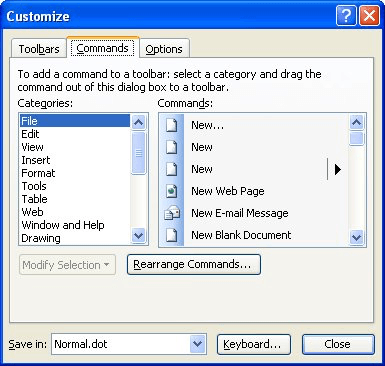
  1. Choose the Customize option from the Tools menu. Word displays the Customize dialog box. (See Figure 1.)
  2. Figure 1. The Customize dialog box.

  3. With the Customize dialog box still open, right-click on the actual menu that you want to reset. (Click on the actual menu at the top of the program Window, not within the dialog box.) Word displays a Context menu. If you only want to reset a sub-menu, left click on the major menu and then right-click on the sub-menu.
  4. Choose Reset from the Context menu. The menu options are returned to their default settings.
  5. Close the Customize dialog box.

WordTips is your source for cost-effective Microsoft Word training. (Microsoft Word is the most popular word processing software in the world.) This tip (382) applies to Microsoft Word 97, 2000, 2002, and 2003.

Author Bio

Allen Wyatt

With more than 50 non-fiction books and numerous magazine articles to his credit, Allen Wyatt is an internationally recognized author. He is president of Sharon Parq Associates, a computer and publishing services company. ...

MORE FROM ALLEN

Accessing Paragraphs in a Macro

Need to process a document, paragraph by paragraph, in a macro? It's easy to do once you understand that Word's object ...

Discover More

Displaying an Input Format in a Cell

Want to show a user, in a cell, what you expect their input to look like? Unfortunately, it cannot be done natively in ...

Discover More

Putting Shift+F4 On the Quick Access Toolbar

The Shift+F4 shortcut is very helpful when you want to repeat an action, such as finding the next occurrence of whatever ...

Discover More

Discover the Power of Microsoft Office This beginner-friendly guide reveals the expert tips and strategies you need to skyrocket your productivity and use Office 365 like a pro. Mastering software like Word, Excel, and PowerPoint is essential to be more efficient and advance your career. Simple lessons guide you through every step, providing the knowledge you need to get started. Check out Microsoft Office 365 For Beginners today!

More WordTips (menu)

Disappearing Macro Menus

Word is quite versatile in how you can customize it. You can add all sorts of macros to menus, but doing so may cause ...

Discover More

Making Macros Readily Available

Want to get at your macros quickly? One way is to create a Macros menu to make your most common macros immediately available.

Discover More

Custom Menu Stays, but Options Disappear

It can be disconcerting when a custom menu you've used for years suddenly loses all the options it previously contained. ...

Discover More
Subscribe

FREE SERVICE: Get tips like this every week in WordTips, a free productivity newsletter. Enter your address and click "Subscribe."

View most recent newsletter.

Comments

If you would like to add an image to your comment (not an avatar, but an image to help in making the point of your comment), include the characters [{fig}] (all 7 characters, in the sequence shown) in your comment text. You’ll be prompted to upload your image when you submit the comment. Maximum image size is 6Mpixels. Images larger than 600px wide or 1000px tall will be reduced. Up to three images may be included in a comment. All images are subject to review. Commenting privileges may be curtailed if inappropriate images are posted.

What is one less than 2?

There are currently no comments for this tip. (Be the first to leave your comment—just use the simple form above!)


This Site

Got a version of Word that uses the menu interface (Word 97, Word 2000, Word 2002, or Word 2003)? This site is for you! If you use a later version of Word, visit our WordTips site focusing on the ribbon interface.

Videos
Subscribe

FREE SERVICE: Get tips like this every week in WordTips, a free productivity newsletter. Enter your address and click "Subscribe."

(Your e-mail address is not shared with anyone, ever.)

View the most recent newsletter.
