
One of the common tasks people perform in Word is to write letters. Many companies use preprinted letterhead for the first sheet of a letter, and then regular paper for subsequent sheets. If you do this, you may be wondering about the best way to format a document that can then be used as letterhead template.
The best way to go about this task depends on the orientation of your letterhead. If your letterhead is across the top margin of the first page, then you will take a different approach than if your letterhead is along the entire left margin of the first page.
If your letterhead is across the top margin of the first page, what you essentially need to do is provide a way for the margins to be different on the first page than on subsequent pages of your document. This can be done by using section breaks and setting margins differently in each section, but such an approach can lead to unforeseen problems. The best way is to "play" with the headers in the document to get the spacing you want. Follow these steps:
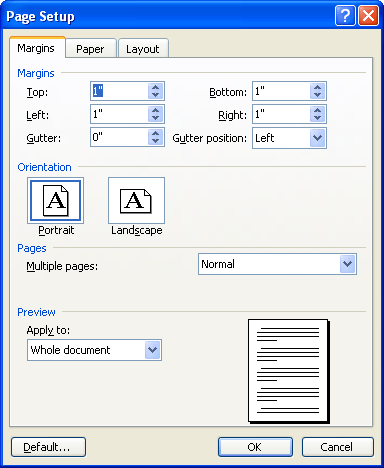
Figure 1. The Margins tab of the Page Setup dialog box.
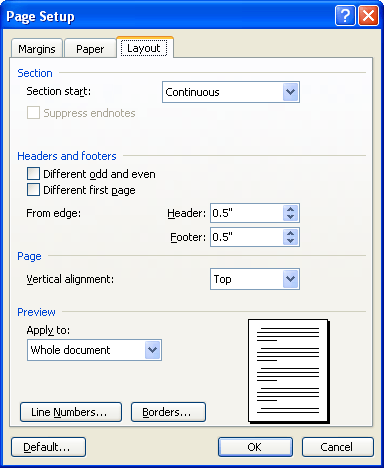
Figure 2. The Layout tab of the Page Setup dialog box.
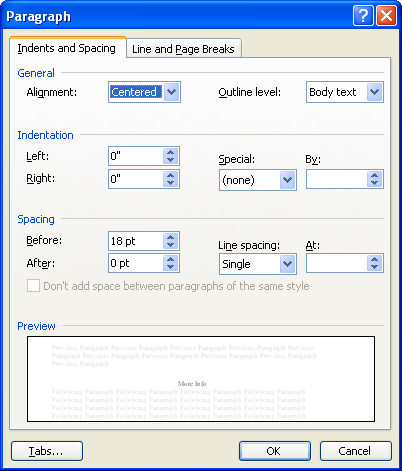
Figure 3. The Paragraph dialog box.
You can now use the template as the basis for your future letters, and the letterhead on the first page is automatically compensated for.
If your company's letterhead is oriented along the left margin on the first page (as is the case in many legal firms), then you need to take a different approach to creating the template. Follow these steps, instead:
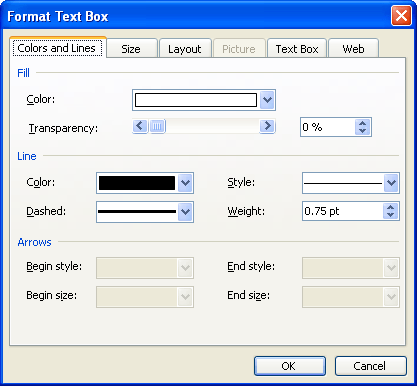
Figure 4. The Colors and Lines tab of the Format Text Box dialog box.
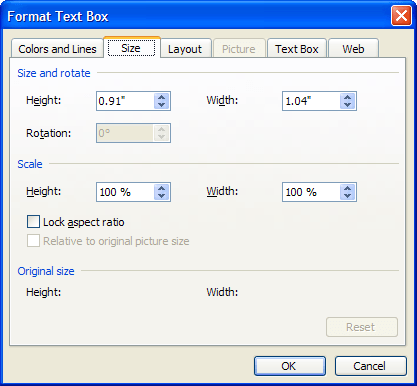
Figure 5. The Size tab of the Format Text Box dialog box.
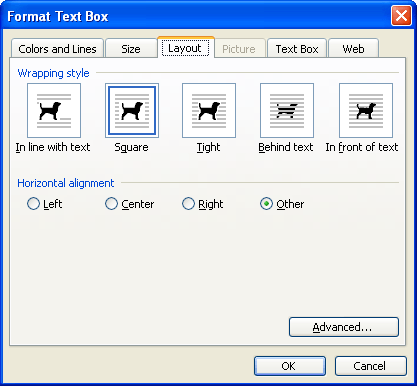
Figure 6. The Layout tab of the Format Text Box dialog box.
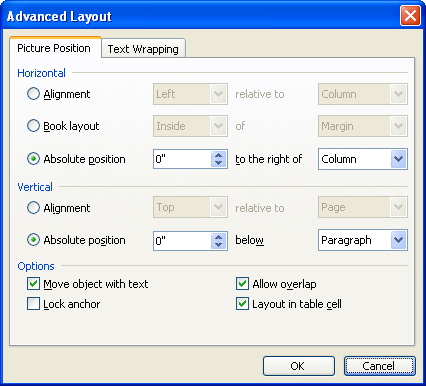
Figure 7. The Advanced Layout dialog box.
Since the text box you entered was anchored on the first-page header paragraph, the text box appears only on the first page. The text wraps around it, and your margins appear to return to normal on subsequent pages.
WordTips is your source for cost-effective Microsoft Word training. (Microsoft Word is the most popular word processing software in the world.) This tip (9406) applies to Microsoft Word 97, 2000, 2002, and 2003.
Discover the Power of Microsoft Office This beginner-friendly guide reveals the expert tips and strategies you need to skyrocket your productivity and use Office 365 like a pro. Mastering software like Word, Excel, and PowerPoint is essential to be more efficient and advance your career. Simple lessons guide you through every step, providing the knowledge you need to get started. Check out Microsoft Office 365 For Beginners today!
Documents rely on templates. If you change the location of those templates (on purpose or by accident), Word can take a ...
Discover MoreTemplates are a great way to share styles, macros, and other settings among various documents. One thing that isn't ...
Discover MoreDon't want Word to start by using the Normal.dot template? This tip explains how to start using a different template.
Discover MoreFREE SERVICE: Get tips like this every week in WordTips, a free productivity newsletter. Enter your address and click "Subscribe."
There are currently no comments for this tip. (Be the first to leave your comment—just use the simple form above!)
Got a version of Word that uses the menu interface (Word 97, Word 2000, Word 2002, or Word 2003)? This site is for you! If you use a later version of Word, visit our WordTips site focusing on the ribbon interface.
Visit the WordTips channel on YouTube

FREE SERVICE: Get tips like this every week in WordTips, a free productivity newsletter. Enter your address and click "Subscribe."
Copyright © 2026 Sharon Parq Associates, Inc.

Comments