

Written by Allen Wyatt (last updated January 31, 2026)
This tip applies to Word 97, 2000, 2002, and 2003
The Equation Editor allows you to easily define complex equations within a Word document. Many other WordTips have dealt with how to use the Equation Editor and format equations. Normally, you use one of these two methods to start the Equation Editor:
If you use a lot of equations in your documents, these methods can quickly become tedious. To make life easier, you can add an Equation Editor tool to any toolbar. To add the tool, follow these steps:
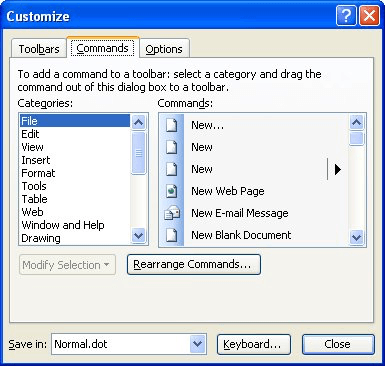
Figure 1. The Commands tab of the Customize dialog box.
Now, to invoke the Equation Editor, just click on the new tool. When you do, the Equation Editor springs to life, ready to help you.
WordTips is your source for cost-effective Microsoft Word training. (Microsoft Word is the most popular word processing software in the world.) This tip (1419) applies to Microsoft Word 97, 2000, 2002, and 2003.
The First and Last Word on Word! Bestselling For Dummies author Dan Gookin puts his usual fun and friendly candor back to work to show you how to navigate Word 2019. Spend more time working and less time trying to figure it all out! Check out Word 2019 For Dummies today!
You can specify exactly where subscripts appear in your equations.
Discover MoreIf you are using matrices in your equations, you can add lines to a matrix by applying this tip.
Discover MoreYou can adjust where an equation is printed by moving it minute amounts in any direction.
Discover MoreFREE SERVICE: Get tips like this every week in WordTips, a free productivity newsletter. Enter your address and click "Subscribe."
There are currently no comments for this tip. (Be the first to leave your comment—just use the simple form above!)
Got a version of Word that uses the menu interface (Word 97, Word 2000, Word 2002, or Word 2003)? This site is for you! If you use a later version of Word, visit our WordTips site focusing on the ribbon interface.
Visit the WordTips channel on YouTube

FREE SERVICE: Get tips like this every week in WordTips, a free productivity newsletter. Enter your address and click "Subscribe."
Copyright © 2026 Sharon Parq Associates, Inc.
Comments