
Please Note: This article is written for users of the following Microsoft Word versions: 97, 2000, 2002, and 2003. If you are using a later version (Word 2007 or later), this tip may not work for you. For a version of this tip written specifically for later versions of Word, click here: Highlighting Text Using the Keyboard Only.

Written by Allen Wyatt (last updated December 26, 2020)
This tip applies to Word 97, 2000, 2002, and 2003
Frank noted that it seems the Highlight tool is only accessible by using the mouse. He prefers to not use the mouse, preferring the keyboard instead. He wondered if there was a way to highlight selected words using just the keyboard.
Before answering, there is something that needs to be clarified: There is some ambiguity when it comes to the word "highlight." For instance, if I say I am going to highlight a word, some people think that means I am going to double-click the word. This isn't highlighting; it is selecting. In Word parlance, the two words have very specific meanings. You select text before you are going to do something with it, such as applying an editing or formatting command. Highlighting, on the other hand, is a formatting task accomplished by using the Highlight tool. (The Highlight tool is available on the Formatting toolbar. It is analogous to a highlighter you use to mark text on a printed page.) In short, you first select text, and then you highlight the selected text by using the Highlight tool.
The ambiguity around the word "highlight" was evident when WordTips subscribers were asked how they can highlight text using the keyboard only, and not the mouse. Many were quick to respond with ways that told how to use the keyboard to select text, such as holding down the Shift key while using the arrow keys or using any number of other selection methods. While this is helpful, it is only part of the solution. The other part deals with how you can actually highlight whatever text has been selected, using just the keyboard.
Word provides no built-in shortcut that will apply a highlight to text, but you can easily create your own shortcut by following these steps:
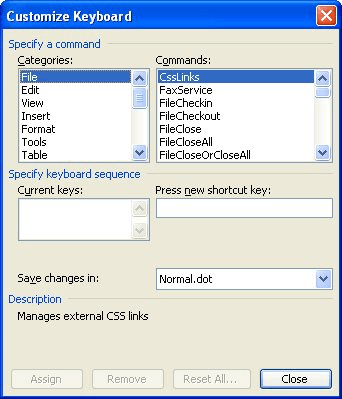
Figure 1. The Customize Keyboard dialog box.
You can now use the shortcut key you specified in step 6 to highlight any text you've selected.
WordTips is your source for cost-effective Microsoft Word training. (Microsoft Word is the most popular word processing software in the world.) This tip (526) applies to Microsoft Word 97, 2000, 2002, and 2003. You can find a version of this tip for the ribbon interface of Word (Word 2007 and later) here: Highlighting Text Using the Keyboard Only.

Create Custom Apps with VBA! Discover how to extend the capabilities of Office 365 applications with VBA programming. Written in clear terms and understandable language, the book includes systematic tutorials and contains both intermediate and advanced content for experienced VB developers. Designed to be comprehensive, the book addresses not just one Office application, but the entire Office suite. Check out Mastering VBA for Microsoft Office 365 today!
Need to change the color you previously used to highlight text in your document? You can use Word's Find and Replace tool ...
Discover MoreYou can use the highlighter tool to add all sorts of color to your document. If you want to turn off those colors so that ...
Discover MoreYou can highlight words and phrases in your document, much the same as you can mark printed words and phrases with a ...
Discover MoreFREE SERVICE: Get tips like this every week in WordTips, a free productivity newsletter. Enter your address and click "Subscribe."
There are currently no comments for this tip. (Be the first to leave your comment—just use the simple form above!)
Got a version of Word that uses the menu interface (Word 97, Word 2000, Word 2002, or Word 2003)? This site is for you! If you use a later version of Word, visit our WordTips site focusing on the ribbon interface.
Visit the WordTips channel on YouTube

FREE SERVICE: Get tips like this every week in WordTips, a free productivity newsletter. Enter your address and click "Subscribe."
Copyright © 2026 Sharon Parq Associates, Inc.
 Please Note:
This article is written for users of the following Microsoft Word versions: 97, 2000, 2002, and 2003. If you are using a later version (Word 2007 or later), this tip may not work for you. For a version of this tip written specifically for later versions of Word, click here:
Please Note:
This article is written for users of the following Microsoft Word versions: 97, 2000, 2002, and 2003. If you are using a later version (Word 2007 or later), this tip may not work for you. For a version of this tip written specifically for later versions of Word, click here:
Comments