
Please Note: This article is written for users of the following Microsoft Word versions: 97, 2000, 2002, and 2003. If you are using a later version (Word 2007 or later), this tip may not work for you. For a version of this tip written specifically for later versions of Word, click here: Double Indenting.

Written by Allen Wyatt (last updated March 23, 2019)
This tip applies to Word 97, 2000, 2002, and 2003
In many businesses (such as the legal profession) it is important to be able to indent paragraphs from both the left and right margins. This helps to offset information from the foregoing and following text so it stands out better. This type of paragraph formatting is often applied to quotations and other "verbatim" information included in a document.
Unfortunately, Word does not include a quick shortcut to create a double indent. You can press Ctrl+M, but that indents only the left side of a paragraph. You are still stuck using the Paragraph dialog box or the Ruler to indent the right side.
One way around this is to create a style in Word that has the necessary indents on both the left and right side. The style can then be assigned to a keyboard shortcut so you can apply it easily. This approach can be very powerful, especially if you think you may need to change the margins on double-indented paragraphs at a later time.
Another approach is to create a macro that does the indenting for you. You can then assign the macro to a keyboard shortcut (such as Alt+D) so it can be invoked easily. The following macro will increase both the left and right indent of a paragraph by a quarter-inch.
Sub DoubleIndent()
    Dim Lindt as Single
    Dim Rindt as Single

    Lindt = Selection.ParagraphFormat.LeftIndent
    Rindt = Selection.ParagraphFormat.RightIndent
    Lindt = Lindt + 18
    If Lindt > 180 Then Lindt = 0
    Rindt = Rindt + 18
    If Rindt > 180 Then Rindt = 0
    Selection.ParagraphFormat.LeftIndent = Lindt
    Selection.ParagraphFormat.RightIndent = Rindt
End Sub
The nifty thing about this macro is that you can repeatedly apply it, and continue to step the margins inward. When you try to increase the margins beyond 2.5 inches on each side, the indents are automatically set back to zero and the process can start again.
Note:
WordTips is your source for cost-effective Microsoft Word training. (Microsoft Word is the most popular word processing software in the world.) This tip (1315) applies to Microsoft Word 97, 2000, 2002, and 2003. You can find a version of this tip for the ribbon interface of Word (Word 2007 and later) here: Double Indenting.

Discover the Power of Microsoft Office This beginner-friendly guide reveals the expert tips and strategies you need to skyrocket your productivity and use Office 365 like a pro. Mastering software like Word, Excel, and PowerPoint is essential to be more efficient and advance your career. Simple lessons guide you through every step, providing the knowledge you need to get started. Check out Microsoft Office 365 For Beginners today!
A quick little shortcut can help you easily step through different font sizes for whatever text you've selected. Word ...
Discover MoreWhen adjusting the position of things on the ruler (like tab stops), you can use the Alt key to get very precise in your ...
Discover MoreInsert a text box, and it is automatically formatted to have a border around it. Getting rid of the border is easy, if ...
Discover MoreFREE SERVICE: Get tips like this every week in WordTips, a free productivity newsletter. Enter your address and click "Subscribe."
2019-03-23 18:23:52
The Double Indent tip is quite an old one that I’m happy to have used for a long time. Thanks, Allen. Time for me to give something useful back.
The following is my Double Indent variation for a somewhat different purpose.
When I create user manuals, I sometimes use special styles to place a visually striking “note box” centered between the margins. There is a default width, but I use my Double Indent macro (attached to a toolbar button) to gradually increase or decrease the margins for the most esthetic arrangement.
My toolbar includes a Note Bar style, a Note style, and my variation of the Double Indent macro, which is included below. My button icons are custom ones I created as visual mnemonics. The attached graphic shows my toolbar and a set of indents to demonstrate the process.
I create my note bar as a paragraph with the word “Note” (or sometimes “Tip”) and apple my Note Bar style, which has default symmetric left and right indents, left alignment, 0 space after, and blue shading. My character formatting is Arial Black in upper case, but that’s just my preference.
I create my note text as a paragraph (or multiple paragraphs) and apple my Note style, which has the same default left and right indents, left alignment, 0 space before, and a lighter blue shading. I apply any direct bold or italic formatting if appropriate.
I select my Note Bar AND the Note text, and click my Double Indent toolbar button, either by itself to increase both indents by a specific amount, or while holding a Ctrl key to decrease the indents by the same amount. In my macro, my increment/decrement is 7.2 pts (a tenth of an inch) and the maximum margins are 144 pts (2 inches), but you can substitute whatever sizes you prefer.
But how do you get the toolbar button click to be sensitive to the Ctrl key state? There is a special library function to detect the key state for the Ctrl key (and the Shift key, too, for extra combinations and possibilities). You must declare this function in the main body of your macro set, outside of the other functions. In my Normal.dot template, I include it at the top, above my other macros.
In the figure below, you can see the first note box with default indents is out of balance. With each toolbar button click the box width shrinks. The second box looks pretty good, but I go farther just to see if anything else looks better. The third box has a few orphan words. Try again. The fourth box has a one word widow that isn’t in bold. Again. The fifth box has the first line all bold and the second line is the same length. Nice, but the third line is bad. One more try. Ugh! Hold CTRL and click the button until it gets back to the second box arrangement, which is the most esthetic.
(see Figure 1 below)
Declare Function GetKeyState Lib "user32" (ByVal nVirtKey As Long) As Integer
Const VK_SHIFT As Integer = &H10 'SHIFT
Const VK_CONTROL As Integer = &H11 'CTRL
Sub DoubleIndent()
' Increase or decrease the paragraph indent symmetrically, both left and right
' Increment/decrement by tenths of an inch (7.2 pts) to 2 inches max / zero min
' To increase the indent, call the function normally (click the toolbar button).
' To decrease the indent, hold either CTRL key while clicking the toolbar button.
' Adapted on 2011/5/23 for increasing the indent from WordTips by Sharon Parq Associates
' Modified - 2011/6/27 to enable decreasing the indent, too.
' Requires (module) declaration of the GetKeyState user32 library function.
Dim Indnt As Single, Lindt As Single, Rindt As Single
Indnt = 7.2
If GetKeyState(VK_CONTROL) < 0 Then Indnt = Indnt * -1
Lindt = Selection.ParagraphFormat.LeftIndent
Rindt = Selection.ParagraphFormat.RightIndent
Lindt = Lindt + Indnt
If Lindt < 0 Then Lindt = 0
If Lindt > 144 Then Lindt = 0
Rindt = Rindt + Indnt
If Rindt < 0 Then Rindt = 0
If Rindt > 144 Then Rindt = 0
Selection.ParagraphFormat.LeftIndent = Lindt
Selection.ParagraphFormat.RightIndent = Rindt
End Sub
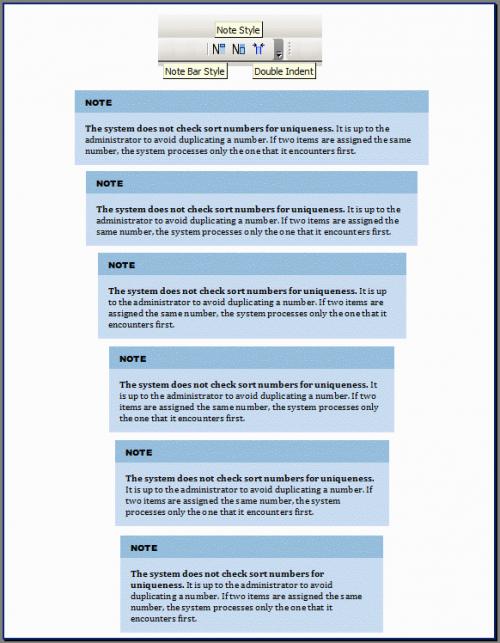
Figure 1. Sample of the Double Indent used multiple times.
Got a version of Word that uses the menu interface (Word 97, Word 2000, Word 2002, or Word 2003)? This site is for you! If you use a later version of Word, visit our WordTips site focusing on the ribbon interface.
Visit the WordTips channel on YouTube

FREE SERVICE: Get tips like this every week in WordTips, a free productivity newsletter. Enter your address and click "Subscribe."
Copyright © 2026 Sharon Parq Associates, Inc.
 Please Note:
This article is written for users of the following Microsoft Word versions: 97, 2000, 2002, and 2003. If you are using a later version (Word 2007 or later), this tip may not work for you. For a version of this tip written specifically for later versions of Word, click here:
Please Note:
This article is written for users of the following Microsoft Word versions: 97, 2000, 2002, and 2003. If you are using a later version (Word 2007 or later), this tip may not work for you. For a version of this tip written specifically for later versions of Word, click here:
Comments