
Please Note: This article is written for users of the following Microsoft Word versions: 97, 2000, 2002, and 2003. If you are using a later version (Word 2007 or later), this tip may not work for you. For a version of this tip written specifically for later versions of Word, click here: Flush Left and Flush Right On the Same Line.

Written by Allen Wyatt (last updated May 16, 2020)
This tip applies to Word 97, 2000, 2002, and 2003
This is a quick and dirty tip on how to have seemingly contradictory alignments on the same line. In Word, this trick is done with tabs. In a nutshell, you follow these steps:
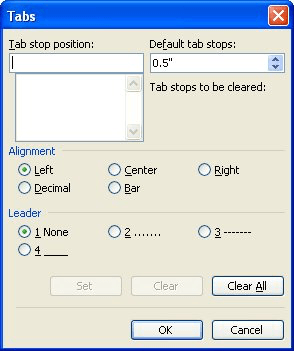
Figure 1. The Tabs dialog box.
This trick works great if the information you are formatting is limited to a single line. As an example, this can easily work for a chapter name and page number in a header or footer. (You know; the chapter name appears at the left and the page number at the right.) If you need to accomplish the same task for multiple lines, then it is best to use a small table with two or three cells. The left-most cell of the table can be for the left-aligned information, and the right-most cell can be used for right-aligned information. The center cell (if you choose to use one) is used for spacing purposes.
WordTips is your source for cost-effective Microsoft Word training. (Microsoft Word is the most popular word processing software in the world.) This tip (1000) applies to Microsoft Word 97, 2000, 2002, and 2003. You can find a version of this tip for the ribbon interface of Word (Word 2007 and later) here: Flush Left and Flush Right On the Same Line.
Do More in Less Time! Are you ready to harness the full power of Word 2013 to create professional documents? In this comprehensive guide you'll learn the skills and techniques for efficiently building the documents you need for your professional and your personal life. Check out Word 2013 In Depth today!
If you use a tab stop in your footer to align information at the right margin, you may not get what you expect when you ...
Discover MoreIf you don't explicitly set tab stops in a paragraph, Word relies upon a default tab stop distance. You can adjust that ...
Discover MoreTabs don't normally show up in your printed document, but Word allows you to still search for them. All you need to do is ...
Discover MoreFREE SERVICE: Get tips like this every week in WordTips, a free productivity newsletter. Enter your address and click "Subscribe."
2021-08-21 19:54:20
Confused
How do I Insert a right-aligned tab near the right edge of the line? Instructions are not clear. I see figure 1. After that, what do I type in the "tab stop position" field?
Got a version of Word that uses the menu interface (Word 97, Word 2000, Word 2002, or Word 2003)? This site is for you! If you use a later version of Word, visit our WordTips site focusing on the ribbon interface.
Visit the WordTips channel on YouTube

FREE SERVICE: Get tips like this every week in WordTips, a free productivity newsletter. Enter your address and click "Subscribe."
Copyright © 2024 Sharon Parq Associates, Inc.
 Please Note:
This article is written for users of the following Microsoft Word versions: 97, 2000, 2002, and 2003. If you are using a later version (Word 2007 or later), this tip may not work for you. For a version of this tip written specifically for later versions of Word, click here:
Please Note:
This article is written for users of the following Microsoft Word versions: 97, 2000, 2002, and 2003. If you are using a later version (Word 2007 or later), this tip may not work for you. For a version of this tip written specifically for later versions of Word, click here:
Comments