
Stubborn Thumbnails

Written by Allen Wyatt (last updated November 15, 2025)

Alan is having a problem with the way that Word starts on his system. Every time he opens a document, the page thumbnails show up at the left side of the window. He keeps closing the area (View | Thumbnails), but the area still shows up the next time he opens a document.

Because this problem is occurring on all the documents you open, it is probably related to something in the Normal.dot template, which is the default template for Word. Unfortunately (as Alan is finding out), simply turning off the thumbnails is not enough to trigger the saving of the template; there needs to be some other change done in order to make the save. With that in mind, you could follow these steps:
  1. Start Word. You should have a blank document on the screen.
  2. Close Thumbnails from the View menu in order to close the thumbnails area.
  3. Choose Options from the Tools menu. Word displays the Options dialog box.
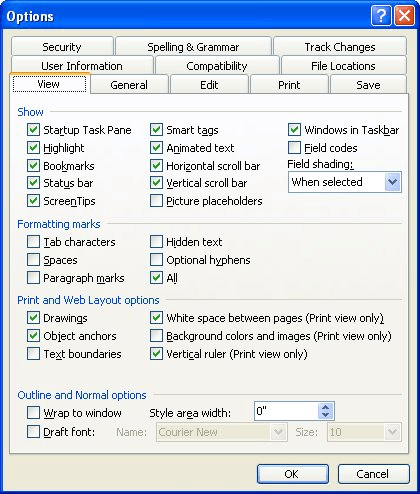
  4. Make sure the View tab is displayed. (See Figure 1.)
  5. Figure 1. The View tab of the Options dialog box.

  6. Change the status of the Startup Task Pane check box. (This action is enough to trigger the save; you don't really care about the setting at this point, but you need to make the change to get the desired action.)
  7. Click OK. The Options dialog box goes away.
  8. Hold down the Shift key as you click on the File menu and choose Save All.
  9. Click Cancel when you are asked if you want to save the original, blank document.
  10. Click Yes when you are asked if you want to save the Normal.dot template. (This is what you really wanted to do all along.)
  11. Repeat steps 3 through 6, if desired, to set the Startup Task Pane check box to how you want it.

WordTips is your source for cost-effective Microsoft Word training. (Microsoft Word is the most popular word processing software in the world.) This tip (349) applies to Microsoft Word 2002 and 2003.
Author Bio

Allen Wyatt

With more than 50 non-fiction books and numerous magazine articles to his credit, Allen Wyatt is an internationally recognized author. He is president of Sharon Parq Associates, a computer and publishing services company. ...

MORE FROM ALLEN

Calculating an Age On a Given Date

Start putting dates in a worksheet (especially birthdates), and sooner or later you will need to calculate an age based ...

Discover More

Forcing a Workbook to Close after Inactivity

Tired of your workbooks being left open on the screen where they can be seen by anyone passing by? Here's a way to have ...

Discover More

Determining if Overtype Mode is Active

Your macro may need to determine if the user has overtype mode turned on. You can find out the overtype status easily by ...

Discover More

Learning Made Easy! Quickly teach yourself how to format, publish, and share your content using Word 2021 or Microsoft 365. With Step by Step, you set the pace, building and practicing the skills you need, just when you need them! Check out Microsoft Word Step by Step today!

More WordTips (menu)

Text Doesn't Wrap at Margin in Normal View

If you are using Word in Normal view, and the text on the screen doesn't wrap at the right margin like it should, the ...

Discover More

Changing Above-the-Line Fonts

Word maintains a list of the fonts most recently used in the program. You can't modify the list, but you can turn it on ...

Discover More

Canceling a Command

Tired of waiting for a command to finish running? You can use the same shortcut to cancel a command that you use to ...

Discover More
Subscribe

FREE SERVICE: Get tips like this every week in WordTips, a free productivity newsletter. Enter your address and click "Subscribe."

View most recent newsletter.

Comments

If you would like to add an image to your comment (not an avatar, but an image to help in making the point of your comment), include the characters [{fig}] (all 7 characters, in the sequence shown) in your comment text. You’ll be prompted to upload your image when you submit the comment. Maximum image size is 6Mpixels. Images larger than 600px wide or 1000px tall will be reduced. Up to three images may be included in a comment. All images are subject to review. Commenting privileges may be curtailed if inappropriate images are posted.

What is four more than 7?

There are currently no comments for this tip. (Be the first to leave your comment—just use the simple form above!)


This Site

Got a version of Word that uses the menu interface (Word 97, Word 2000, Word 2002, or Word 2003)? This site is for you! If you use a later version of Word, visit our WordTips site focusing on the ribbon interface.

Videos
Subscribe

FREE SERVICE: Get tips like this every week in WordTips, a free productivity newsletter. Enter your address and click "Subscribe."

(Your e-mail address is not shared with anyone, ever.)

View the most recent newsletter.
