
Please Note: This article is written for users of the following Microsoft Word versions: 97, 2000, 2002, and 2003. If you are using a later version (Word 2007 or later), this tip may not work for you. For a version of this tip written specifically for later versions of Word, click here: Changing Text Case.
You've probably had it happen to you: You get a document from the new temp down the hall (or the technically illiterate mid-level manager), and you need to get it ready for a presentation in ten minutes. When you open the document you see that EVERYTHING IN THE DOCUMENT IS SCREAMING AT YOU. All the text is in capital letters. Aaagghhh! You can't distribute the document in this format. Quick—what do you do?
Fortunately, Word allows you to quickly and easily change the capitalization (case) of text. All you need to do is follow these steps:
Using the Shift+F3 method allows you to cycle through three different case scenarios: ALL CAPS, all lowercase, and All Title Case. If you need greater control, then you need to use the menus. Simply select your text and then choose Change Case from the Format menu. Word displays the Change Case dialog box. (See Figure 1.)
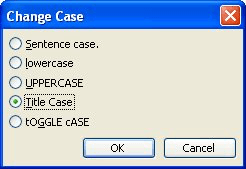
Figure 1. The Change Case dialog box.
Note that the dialog box provides five different ways you can change the capitalization of your text. You can select the one that reflects what you want to do, and then click OK to have Word make the change. These are the choices in the dialog box:
WordTips is your source for cost-effective Microsoft Word training. (Microsoft Word is the most popular word processing software in the world.) This tip (249) applies to Microsoft Word 97, 2000, 2002, and 2003. You can find a version of this tip for the ribbon interface of Word (Word 2007 and later) here: Changing Text Case.

Discover the Power of Microsoft Office This beginner-friendly guide reveals the expert tips and strategies you need to skyrocket your productivity and use Office 365 like a pro. Mastering software like Word, Excel, and PowerPoint is essential to be more efficient and advance your career. Simple lessons guide you through every step, providing the knowledge you need to get started. Check out Microsoft Office 365 For Beginners today!
Hate to take your hands off the keyboard? Here's a handy keyboard shortcut you can use to display (or not display) the ...
Discover MoreWant to get rid of almost everything on the screen except your document? Here's how to easily maximize what you see.
Discover MoreWant to return a paragraph's formatting back to it's pristine, unaltered state? You can do so by using the shortcut ...
Discover MoreFREE SERVICE: Get tips like this every week in WordTips, a free productivity newsletter. Enter your address and click "Subscribe."
2022-03-15 16:43:33
sw8dishgirl
I wish I could remove the ALL CAPS part of the Change Case macro when it's cycling through. I only capitalize or lowercase the letter.
2020-03-28 11:28:54
Steve Ruis
Oh, this will save me a bundle of time. I edit documents in which people use all caps for emphasis and going through the Change Case dialog bow over and over and over gets tiresome. I don't know how I missed this one before. Thanks!
2020-03-28 07:46:48
Steve Wells
I keep a huge spreadsheet of my DVD/Blu-ray/4K disc collection. I do the bulk of film/TV title editing in Word, then copy/paste into Excel.nnThe native Word title case functionality is rather useless, so I adapted the Word Tip macro for Intelligent Title Case at https://word.tips.net/T000215_Intelligent_Title_Case.html to use an increased set of title words to place in lower case.nIn my version way below, I renamed the variable lclist to the descriptive "LowCaseList" and organize it as a concatenation for readability and organization. I sort each functionally related and word-length group for my own logical organization. The order does not influence macro functionality.nn' List of lowercase words, surrounded by spaces (concatenated and continued)n LowCaseList = " a an the and but or nor so yet as " & _n "at by in of on to up for off out per pro qua via " & _n "amid atop down from into like near next onto " & _n "over past plus sans save than till upon with " & _n "da de la le van von dans "nnFirst, I have the articles (a an the) along with the common conjunctions.nThen 2-letter and 3-letter prepositions, including Latin origin words.nThen two lines of 4-letter prepositions, including "sans" (adopted into English).nFinally, purely foreign (mostly French) bits, such as those found in the title of the iconic 1902 short film, "Le Voyage dans la Lune" (A Trip to the Moon) by pioneering French filmmaker, Georges Méliès.nnHere is my adaptation of Allen's fine macro. All lines are 80 characters or fewer.n-----------------------------------------------------------nSub TitleCase()n' Set the selection in headline title case.nn' Adapted 2011/5/24 by Steve Wells from WordTips by Sharon Parq Associates, andn' amended 2014/7/25 and 2015/5/20.n' Set a selection in title case according to the Microsoft Manual of Stylen' heading title rules. (The Chicago Manual of Style differs, recommendingn' all prepositions be lowercase, regardless of length.)n' Articles, conjunctions, prepositions (four characters or fewer), and somen' foreign words usually take lowercase, except as the first or last words ofn' a title. (The WordTips version did not always capitalize the final word.)nn' The result may fail any of the many exceptions from special contexts; such asn' short prepositions in verb phrases, hyphenated forms, and special terms,n' among others that are all beyond the scope of this simple tool.nn' When the selection includes an ending paragraph mark, punctuation, or spaces,n' the last word could be problematic. A test shrinks the selection to removen' such a paragraph mark and/or punctuation if present. Adjustment for titlesn' with intra-selection line breaks is beyond the scope of this tool.nn Dim LowCaseList, Strng As Stringn Dim Wrd As Integernn' List of lowercase words, surrounded by spaces (concatenated and continued)n LowCaseList = " a an the and but or nor so yet as " & _n "at by in of on to up for off out per pro qua via " & _n "amid atop down from into like near next onto " & _n "over past plus sans save than till upon with " & _n "da de la le van von dans "nn' Exclude a final paragraph mark from the selection.n If Right(Selection.Text, 1) = vbCr Then _n Selection.MoveEnd Unit:=wdCharacter, Count:=-1nn' Exclude final punctuation from the selection.n While InStr(".?!:,-–— ", Right(Selection.Text, 1))n Selection.MoveEnd Unit:=wdCharacter, Count:=-1n Wendnn' Convert to standard Word title case. Fully uppercase words don't alwaysn' convert properly, so the selection is first converted to lowercase.n Selection.Range.Case = wdLowerCasen Selection.Range.Case = wdTitleWordn n' Change words between the first and last ones to lowercase if in the list.n For Wrd = 2 To Selection.Range.Words.Count - 1n Strng = Trim(Selection.Range.Words(Wrd))n Strng = " " & LCase(Strng) & " "n If InStr(LowCaseList, Strng) Thenn Selection.Range.Words(Wrd).Case = wdLowerCasen End Ifn Next WrdnEnd Sub
Got a version of Word that uses the menu interface (Word 97, Word 2000, Word 2002, or Word 2003)? This site is for you! If you use a later version of Word, visit our WordTips site focusing on the ribbon interface.
Visit the WordTips channel on YouTube

FREE SERVICE: Get tips like this every week in WordTips, a free productivity newsletter. Enter your address and click "Subscribe."
Copyright © 2026 Sharon Parq Associates, Inc.
 Please Note:
This article is written for users of the following Microsoft Word versions: 97, 2000, 2002, and 2003. If you are using a later version (Word 2007 or later), this tip may not work for you. For a version of this tip written specifically for later versions of Word, click here:
Please Note:
This article is written for users of the following Microsoft Word versions: 97, 2000, 2002, and 2003. If you are using a later version (Word 2007 or later), this tip may not work for you. For a version of this tip written specifically for later versions of Word, click here: 
Comments