
If you are using Word to manage different versions of your document (using the Versions feature), there may come a time when you want to delete an old version of your document. This is periodically a good idea, anyway, since each version you save increases the amount of disk space necessary to store your file. To delete a saved version, follow these steps:
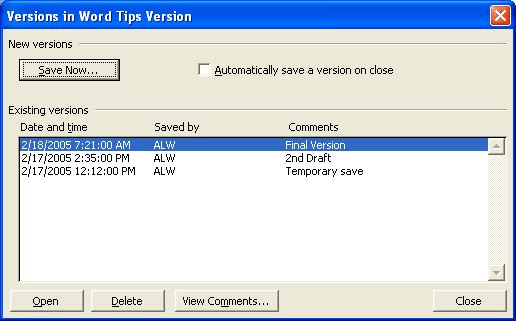
Figure 1. The Versions dialog box.
WordTips is your source for cost-effective Microsoft Word training. (Microsoft Word is the most popular word processing software in the world.) This tip (1851) applies to Microsoft Word 97, 2000, 2002, and 2003.
Learning Made Easy! Quickly teach yourself how to format, publish, and share your content using Word 2021 or Microsoft 365. With Step by Step, you set the pace, building and practicing the skills you need, just when you need them! Check out Microsoft Word Step by Step today!
When you print address labels, you only have a limited amount of horizontal space for each line of the label. If your ...
Discover MoreSpend a lot of time scrolling around in your document? You might find one of Word's hidden scrolling commands to be a ...
Discover MoreAn AutoMark file allows you to quickly and easily create an index from a document. This can be a great boon for large ...
Discover MoreFREE SERVICE: Get tips like this every week in WordTips, a free productivity newsletter. Enter your address and click "Subscribe."
There are currently no comments for this tip. (Be the first to leave your comment—just use the simple form above!)
Got a version of Word that uses the menu interface (Word 97, Word 2000, Word 2002, or Word 2003)? This site is for you! If you use a later version of Word, visit our WordTips site focusing on the ribbon interface.
Visit the WordTips channel on YouTube

FREE SERVICE: Get tips like this every week in WordTips, a free productivity newsletter. Enter your address and click "Subscribe."
Copyright © 2026 Sharon Parq Associates, Inc.

Comments