
Please Note: This article is written for users of the following Microsoft Word versions: 97, 2000, 2002, and 2003. If you are using a later version (Word 2007 or later), this tip may not work for you. For a version of this tip written specifically for later versions of Word, click here: Adding a Break to Your Document.
As you are typing in Word, you will notice the program automatically keeps track of where you are. When your document no longer fits on a single page, Word automatically inserts a page break (indicated by a thin dashed line when viewing your document in Normal view) and wraps your text to the next page.
There may be times, however, when you want to insert a break in your text automatically. Word supports the following types of breaks:
To insert a break in your document, follow these steps if you are using Word 2007:
If you are using a version of Word prior to Word 2007, follow these steps instead:
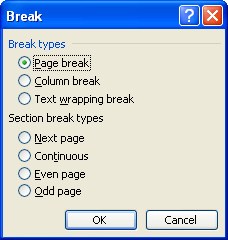
Figure 1. The Break dialog box.
WordTips is your source for cost-effective Microsoft Word training. (Microsoft Word is the most popular word processing software in the world.) This tip (183) applies to Microsoft Word 97, 2000, 2002, and 2003. You can find a version of this tip for the ribbon interface of Word (Word 2007 and later) here: Adding a Break to Your Document.

Do More in Less Time! An easy-to-understand guide to the more advanced features available in the Microsoft 365 version of Word. Enhance the quality of your documents and boost productivity in any field with this in-depth resource. Complete your Word-related tasks more efficiently as you unlock lesser-known tools and learn to quickly access the features you need. Check out Microsoft 365 Word For Professionals For Dummies today!
Rather than have the margins of your documents always be the same, you can use what Word calls "mirror margins." Here's ...
Discover MoreA common pagination convention used in publishing is for new chapters (and sometimes new sections) to start on an ...
Discover MorePart of determining page layout is to specify the size of the margins that surround the text on a page. Word allows you ...
Discover MoreFREE SERVICE: Get tips like this every week in WordTips, a free productivity newsletter. Enter your address and click "Subscribe."
2019-05-21 12:19:11
Justin
Hi,nThanks for all the wonderfully helpful tips!nBTW, Re Page Breaks (above): A friend showed me that you can also get a page break with the keyboard shortcut Ctrl+Enter.nThanks
2014-11-12 12:31:29
Liz Bacon
I am looking to hire a word expert for a clinet job I have going - any leads?
Got a version of Word that uses the menu interface (Word 97, Word 2000, Word 2002, or Word 2003)? This site is for you! If you use a later version of Word, visit our WordTips site focusing on the ribbon interface.
Visit the WordTips channel on YouTube

FREE SERVICE: Get tips like this every week in WordTips, a free productivity newsletter. Enter your address and click "Subscribe."
Copyright © 2026 Sharon Parq Associates, Inc.
 Please Note:
This article is written for users of the following Microsoft Word versions: 97, 2000, 2002, and 2003. If you are using a later version (Word 2007 or later), this tip may not work for you. For a version of this tip written specifically for later versions of Word, click here:
Please Note:
This article is written for users of the following Microsoft Word versions: 97, 2000, 2002, and 2003. If you are using a later version (Word 2007 or later), this tip may not work for you. For a version of this tip written specifically for later versions of Word, click here: 
Comments