
Setting Fraction Bar Thickness in the Equation Editor

Written by Allen Wyatt (last updated February 22, 2022)

The Equation Editor allows you to specify the thickness of the division line (the fraction bar) it uses in equations. You do this as follows:
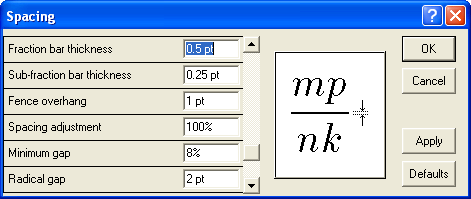
  1. Choose Spacing from the Format menu. The Equation Editor displays the Spacing dialog box.
  2. Click on the Fraction bar thickness box (you will need to scroll down some in the list of spacing settings). The Equation Editor changes the Spacing dialog box. (See Figure 1.)
  3. Figure 1. The Spacing dialog box.

  4. Enter a fraction bar thickness value in points.
  5. Click on OK.

WordTips is your source for cost-effective Microsoft Word training. (Microsoft Word is the most popular word processing software in the world.) This tip (936) applies to Microsoft Word 97, 2000, 2002, and 2003.

Author Bio

Allen Wyatt

With more than 50 non-fiction books and numerous magazine articles to his credit, Allen Wyatt is an internationally recognized author. He is president of Sharon Parq Associates, a computer and publishing services company. ...

MORE FROM ALLEN

Reversing Type

Most text appears black on white, not white on black. If you want to change this so that your type is reversed, here's a ...

Discover More

Renaming a File

Need to rename a file in a macro? It's easy to do using the Name command, as discussed in this tip.

Discover More

Adding Text to a Drawing Shape

You can add text to all sorts of drawing shapes, not just text boxes. Here's how easy it is.

Discover More

Learning Made Easy! Quickly teach yourself how to format, publish, and share your content using Word 2021 or Microsoft 365. With Step by Step, you set the pace, building and practicing the skills you need, just when you need them! Check out Microsoft Word Step by Step today!

More WordTips (menu)

Setting Limit Height in the Equation Editor

You can adjust the distance between the equation body and a limit line.

Discover More

Setting Line Spacing in the Equation Editor

The Equation Editor can be a great boon when you need to include complex mathematical equations in your document. The ...

Discover More

Entering a Measurement in the Equation Editor

The Equation Editor is a handy tool, particularly for those who must include mathematical equations in their documents. ...

Discover More
Subscribe

FREE SERVICE: Get tips like this every week in WordTips, a free productivity newsletter. Enter your address and click "Subscribe."

View most recent newsletter.

Comments

If you would like to add an image to your comment (not an avatar, but an image to help in making the point of your comment), include the characters [{fig}] (all 7 characters, in the sequence shown) in your comment text. You’ll be prompted to upload your image when you submit the comment. Maximum image size is 6Mpixels. Images larger than 600px wide or 1000px tall will be reduced. Up to three images may be included in a comment. All images are subject to review. Commenting privileges may be curtailed if inappropriate images are posted.

What is four more than 7?

There are currently no comments for this tip. (Be the first to leave your comment—just use the simple form above!)


This Site

Got a version of Word that uses the menu interface (Word 97, Word 2000, Word 2002, or Word 2003)? This site is for you! If you use a later version of Word, visit our WordTips site focusing on the ribbon interface.

Videos
Subscribe

FREE SERVICE: Get tips like this every week in WordTips, a free productivity newsletter. Enter your address and click "Subscribe."

(Your e-mail address is not shared with anyone, ever.)

View the most recent newsletter.
