
Selecting Text Orientation for an Axis in Microsoft Graph

Written by Allen Wyatt (last updated November 22, 2025)

As you are working with a chart in Microsoft Graph, you might find if helpful to change how text appears on an axis. For instance, you might want the text to be vertical instead of horizontal. Microsoft Graph makes it easy to change this:
  1. Select the axis whose text you wish to alter. Do this by clicking on the axis with the mouse.
  2. Choose Selected Axis from the Format menu. Microsoft Graph displays the Format Axis dialog box.
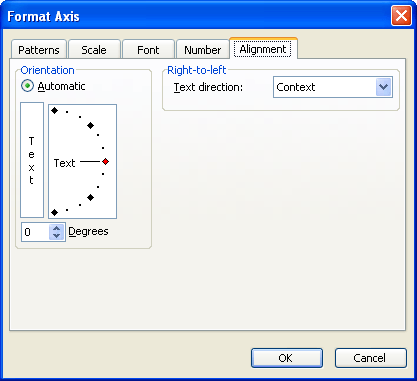
  3. Make sure the Alignment tab is selected. (See Figure 1.)
  4. Figure 1. The Alignment tab of the Format Axis dialog box

  5. Specify an orientation for the text, in degrees. You can pick any setting from 90 degrees to -90 degrees. You can also click on the vertical orientation bar, at the left side of the dialog box.
  6. Click on OK.

WordTips is your source for cost-effective Microsoft Word training. (Microsoft Word is the most popular word processing software in the world.) This tip (706) applies to Microsoft Word 97, 2000, 2002, and 2003.

Author Bio

Allen Wyatt

With more than 50 non-fiction books and numerous magazine articles to his credit, Allen Wyatt is an internationally recognized author. He is president of Sharon Parq Associates, a computer and publishing services company. ...

MORE FROM ALLEN

Superscripts in Custom Formats

When you create custom formats for your data, Excel provides quite a few ways you can make that data look just as you ...

Discover More

Putting Cell Contents in Footers

Referencing information between cells in a worksheet is a piece of cake using some elemental formulas. You cannot, ...

Discover More

Setting Defaults in the Cross-reference Dialog Box

Some types of documents rely on cross-references quite a bit. Setting up the Cross-reference dialog box the first time in ...

Discover More

Create Custom Apps with VBA! Discover how to extend the capabilities of Office 365 applications with VBA programming. Written in clear terms and understandable language, the book includes systematic tutorials and contains both intermediate and advanced content for experienced VB developers. Designed to be comprehensive, the book addresses not just one Office application, but the entire Office suite. Check out Mastering VBA for Microsoft Office 365 today!

More WordTips (menu)

Specifying Colors in a Chart

Microsoft Chart is a handy program that allows you to display numbers and charts without the need for Excel. If you need ...

Discover More

Changing the Orientation of Your Chart

Microsoft Graph is a great way to add simple charts to your documents. Once you've got a graph added, you might want to ...

Discover More

Deleting Datasheet Rows or Columns

How to remove information from your datasheet.

Discover More
Subscribe

FREE SERVICE: Get tips like this every week in WordTips, a free productivity newsletter. Enter your address and click "Subscribe."

View most recent newsletter.

Comments

If you would like to add an image to your comment (not an avatar, but an image to help in making the point of your comment), include the characters [{fig}] (all 7 characters, in the sequence shown) in your comment text. You’ll be prompted to upload your image when you submit the comment. Maximum image size is 6Mpixels. Images larger than 600px wide or 1000px tall will be reduced. Up to three images may be included in a comment. All images are subject to review. Commenting privileges may be curtailed if inappropriate images are posted.

What is four more than 7?

There are currently no comments for this tip. (Be the first to leave your comment—just use the simple form above!)


This Site

Got a version of Word that uses the menu interface (Word 97, Word 2000, Word 2002, or Word 2003)? This site is for you! If you use a later version of Word, visit our WordTips site focusing on the ribbon interface.

Videos
Subscribe

FREE SERVICE: Get tips like this every week in WordTips, a free productivity newsletter. Enter your address and click "Subscribe."

(Your e-mail address is not shared with anyone, ever.)

View the most recent newsletter.
