
You know you can use the Field Codes check box on the View tab of the Options dialog box to control whether or not field codes are displayed in your document. You may even know that you can use Alt+F9 to switch between field codes and their results. However, what if you are mouse-bound, and want to accomplish the same task quickly without resorting to the keyboard?
You can add a tool to any toolbar you want that will toggle between field codes and field results. To add such a tool to your toolbar, follow these steps:
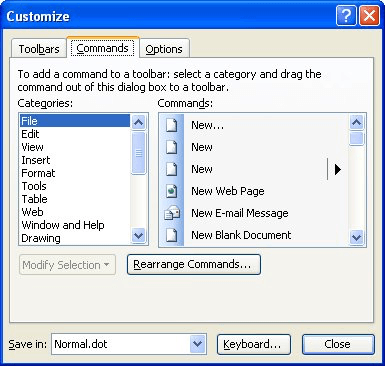
Figure 1. The Commands tab of the Customize dialog box.
Now, when you want to see your field coding, click on the new icon. Click again, and the results of the field codes are instead displayed.
WordTips is your source for cost-effective Microsoft Word training. (Microsoft Word is the most popular word processing software in the world.) This tip (542) applies to Microsoft Word 97, 2000, 2002, and 2003.
Learning Made Easy! Quickly teach yourself how to format, publish, and share your content using Word 2021 or Microsoft 365. With Step by Step, you set the pace, building and practicing the skills you need, just when you need them! Check out Microsoft Word Step by Step today!
You can use fields to cross-reference different text in a document. If you get unwanted results from the ...
Discover MoreWord allows you to specify where it should start looking for your documents. This setting can come in handy if you store ...
Discover MoreIf you need to control exactly where text will appear on the page or relative to other text, you need to know about the ...
Discover MoreFREE SERVICE: Get tips like this every week in WordTips, a free productivity newsletter. Enter your address and click "Subscribe."
There are currently no comments for this tip. (Be the first to leave your comment—just use the simple form above!)
Got a version of Word that uses the menu interface (Word 97, Word 2000, Word 2002, or Word 2003)? This site is for you! If you use a later version of Word, visit our WordTips site focusing on the ribbon interface.
Visit the WordTips channel on YouTube

FREE SERVICE: Get tips like this every week in WordTips, a free productivity newsletter. Enter your address and click "Subscribe."
Copyright © 2026 Sharon Parq Associates, Inc.

Comments