
Please Note: This article is written for users of the following Microsoft Word versions: 2002 and 2003. If you are using a later version (Word 2007 or later), this tip may not work for you. For a version of this tip written specifically for later versions of Word, click here: Can't Select Style Instances.
Graham is having a problem with the Styles and Formatting task pane in Word 2003. In every document that he opens, Graham can see the styles in the Styles and Formatting task pane. If he clicks the down-arrow to the right of a style in the task pane, the top line is supposed to show the number of occurrences of that style in the document. However, for every style listed the line is always grayed out and says "Select All: Not Currently Used." Graham is wondering why Word won't show him the correct occurrences of styles, like it should, and allow him to select the option.
The answer lies in the configuration of Word. The feature that allows you to select all the instances of a style is controlled by a configuration setting in the program. Follow these steps if you are using Word 2002 or Word 2003:
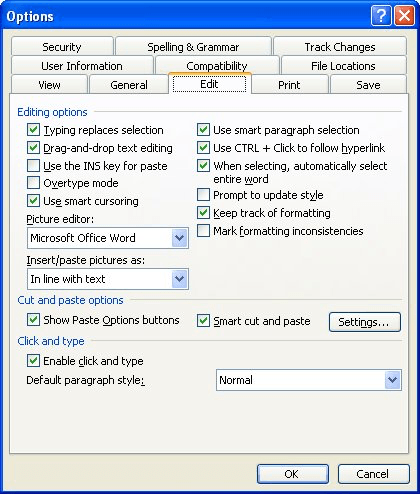
Figure 1. The Edit tab of the Options dialog box.
The Keep Track of Formatting check box is selected, by default, in Word. It is not unusual for the option to get turned off by experienced users, however. The reason is that with the option turned on, Word keeps more rigorous track of variant styles, creating a new one each time you apply a paragraph style to a selection of individual characters instead of to an entire paragraph. (This has been discussed in other issues of WordTips.) What these users do, however, is turn the Keep Track of Formatting option back on when they want to use the Styles and Formatting task pane to select instances of defined styles, as Graham wants to do. When they are done working with the styles in that manner, they turn the option back off.
WordTips is your source for cost-effective Microsoft Word training. (Microsoft Word is the most popular word processing software in the world.) This tip (419) applies to Microsoft Word 2002 and 2003. You can find a version of this tip for the ribbon interface of Word (Word 2007 and later) here: Can't Select Style Instances.

Do More in Less Time! An easy-to-understand guide to the more advanced features available in the Microsoft 365 version of Word. Enhance the quality of your documents and boost productivity in any field with this in-depth resource. Complete your Word-related tasks more efficiently as you unlock lesser-known tools and learn to quickly access the features you need. Check out Microsoft 365 Word For Professionals For Dummies today!
If you spend a lot of time getting your document styles set "just right," you don't want to take the chance that they ...
Discover MoreAs documents evolve, so do your needs for various styles. You may create new ones and, invariably, old ones need to be ...
Discover MoreInsert one document into another and you may not get the results you expect. Here's why, along with what you can do about it.
Discover MoreFREE SERVICE: Get tips like this every week in WordTips, a free productivity newsletter. Enter your address and click "Subscribe."
There are currently no comments for this tip. (Be the first to leave your comment—just use the simple form above!)
Got a version of Word that uses the menu interface (Word 97, Word 2000, Word 2002, or Word 2003)? This site is for you! If you use a later version of Word, visit our WordTips site focusing on the ribbon interface.
Visit the WordTips channel on YouTube

FREE SERVICE: Get tips like this every week in WordTips, a free productivity newsletter. Enter your address and click "Subscribe."
Copyright © 2026 Sharon Parq Associates, Inc.
 Please Note:
This article is written for users of the following Microsoft Word versions: 2002 and 2003. If you are using a later version (Word 2007 or later), this tip may not work for you. For a version of this tip written specifically for later versions of Word, click here:
Please Note:
This article is written for users of the following Microsoft Word versions: 2002 and 2003. If you are using a later version (Word 2007 or later), this tip may not work for you. For a version of this tip written specifically for later versions of Word, click here: 
Comments