
Elizabeth ran into a problem with Word after updating to Word 2003 SP2. For some reason she can no longer see any graphics in her document. She knows they are still there because the text wraps around them, but they are not visible. They do print OK, however.
The first thing to check is to make sure that picture placeholders has not somehow been turned on. You do this by following these steps:
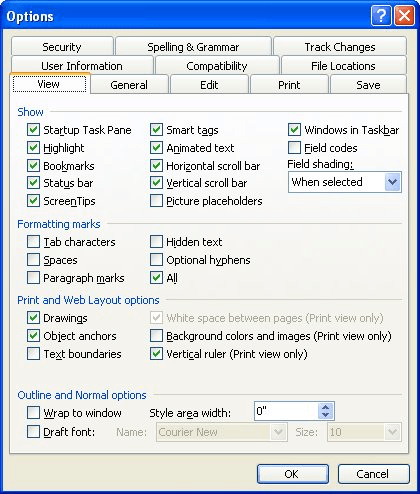
Figure 1. The View tab of the Options dialog box.
If the check box was selected, then Word doesn't display graphics. Clear the check box, and they reappear, as you would expect. The problem could also have to do with how you are pasting images in your document and the viewing mode you are using. Basically, if you pare pasting images as anything other than "inline" and you are using Normal or Outline viewing modes, you won't be able to see the pictures. Microsoft discusses this problem in their Knowledge Base:
http://support.microsoft.com/kb/285957
If this doesn't fix the problem, then it could be related to problems with a device driver or conflicts between your device drivers. Chances are good it is not a problem with the printer driver (you can print the graphics without problem), so it is probably a video card driver. You'll want to determine what type of video card you have and then visit the Web site of the manufacturer to procure the latest download.
WordTips is your source for cost-effective Microsoft Word training. (Microsoft Word is the most popular word processing software in the world.) This tip (323) applies to Microsoft Word 97, 2000, 2002, and 2003.
The First and Last Word on Word! Bestselling For Dummies author Dan Gookin puts his usual fun and friendly candor back to work to show you how to navigate Word 2019. Spend more time working and less time trying to figure it all out! Check out Word 2019 For Dummies today!
Place enough pictures, and sooner or later you start wondering if there is a way to set up some default settings for ...
Discover MorePut a caption with a picture and you'd probably like the two elements to behave like they belong together. If you are ...
Discover MoreWhen you insert an object into your document, it is anchored to a paragraph. If you want to change the paragraph to which ...
Discover MoreFREE SERVICE: Get tips like this every week in WordTips, a free productivity newsletter. Enter your address and click "Subscribe."
There are currently no comments for this tip. (Be the first to leave your comment—just use the simple form above!)
Got a version of Word that uses the menu interface (Word 97, Word 2000, Word 2002, or Word 2003)? This site is for you! If you use a later version of Word, visit our WordTips site focusing on the ribbon interface.
Visit the WordTips channel on YouTube

FREE SERVICE: Get tips like this every week in WordTips, a free productivity newsletter. Enter your address and click "Subscribe."
Copyright © 2026 Sharon Parq Associates, Inc.

Comments