
Cheri has a document that is behaving oddly. The document was revised using Track Changes. Upon receiving the document it showed the markups for the first reviewer, who used Word 2000. The second reviewer, using Word 2003, revised the same document, again with Track Changes turned on. During this second revision, each reviewer's changes showed up in a separate color, as they should. The document was saved and closed, but when it was opened up again, all the reviewer changes appeared in a single color; the changes from both reviewers were there, but they looked as if they had been done by a single reviewer.
The first thing to check out is if this problem occurs on a number of different machines. Odds are good that it won't, and that it will only be limited to one or two machines. (On the other machines, the colors should display differently for each editor.) On the machine (or machines) where the colors all appear the same, display the Track Changes tab of the Options dialog box by choosing Tools | Options | Track Changes. (See Figure 1.)
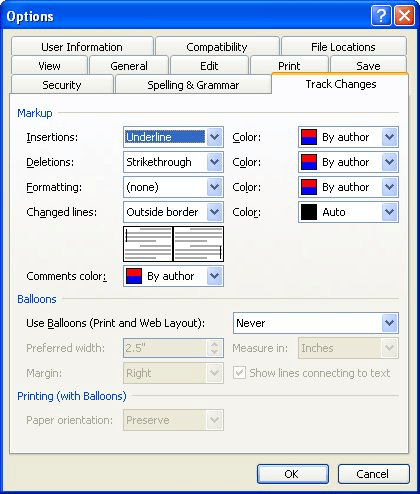
Figure 1. The Track Changes tab of the Options dialog box.
Make sure that all the Color settings (with the exception of the color setting for the change bars) are set to "By Author." If these settings are for a specific color, then it can affect how changes are displayed in the document. Some people misunderstand and think that these color settings affect only those changes done by the current author. That is not correct; the setting affects the display of all edits and makes them indistinguishable according to author.
WordTips is your source for cost-effective Microsoft Word training. (Microsoft Word is the most popular word processing software in the world.) This tip (300) applies to Microsoft Word 97, 2000, 2002, and 2003.
The First and Last Word on Word! Bestselling For Dummies author Dan Gookin puts his usual fun and friendly candor back to work to show you how to navigate Word 2019. Spend more time working and less time trying to figure it all out! Check out Word 2019 For Dummies today!
Track Changes is a handy tool for those who need to see how a document changes over time. If you have a long document ...
Discover MoreEver wonder how to customize the way the Track Changes feature displays revision bars at the side of changed material? ...
Discover MoreWhen a group of people edits a document with Track Changes turned on, it can be tempting for one of the editors to use ...
Discover MoreFREE SERVICE: Get tips like this every week in WordTips, a free productivity newsletter. Enter your address and click "Subscribe."
There are currently no comments for this tip. (Be the first to leave your comment—just use the simple form above!)
Got a version of Word that uses the menu interface (Word 97, Word 2000, Word 2002, or Word 2003)? This site is for you! If you use a later version of Word, visit our WordTips site focusing on the ribbon interface.
Visit the WordTips channel on YouTube

FREE SERVICE: Get tips like this every week in WordTips, a free productivity newsletter. Enter your address and click "Subscribe."
Copyright © 2026 Sharon Parq Associates, Inc.

Comments