
There are numerous programs that can be added to Word, as add-ins, that enhance the way you can use Word. Many of these add-ins add their own toolbars to the Word interface. Normally, the toolbars are visible by default, although you can turn them off by using View | Toolbars. For some add-ins, you may want the toolbar off by default, choosing to use View | Toolbars to turn the toolbar on when you need it.
To change the default behavior of add-in toolbars, you really only have three choices. The first choice, and most obvious, is to change the coding in the add-in so that the toolbar doesn't show every time you start Word. Unless you have access to the source code for the add-in, this choice--while obvious--is not really practical.
The second choice, if you really want the template all of the time but just don't want to see the toolbar, is to record a macro named AutoExec that turns off the toolbar. Any macro named Autoexec (stored in your Normal.dot template) will execute every time you start Word.
The third choice is to change how the template is loaded by Word. (This choice assumes that the add-in is installed through a template, and not some other method.) Outside of Word, take a look at the Startup folders used by the program. (The Startup folder is found in Tools | Options | File Locations.) If you see, in the folder, the template that is used by the add-in, simply move the template to a different folder. A good place to move it is to the User Templates folder (also in Tools | Options | File Locations). Once moved, the add-in won't load when starting Word, but the add-in will be available as a Global Template and Add-In when choosing Tools | Templates and Add-Ins. (See Figure 1.) A simple checkbox change activates the add-in, and another checkbox change turns it off.
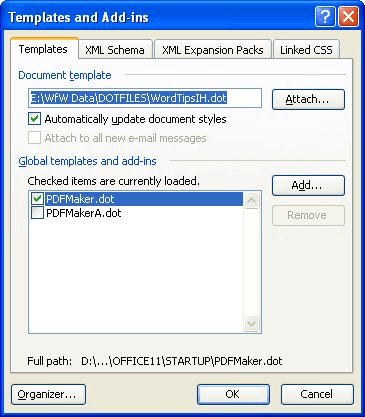
Figure 1. The Templates and Add-ins dialog box.
WordTips is your source for cost-effective Microsoft Word training. (Microsoft Word is the most popular word processing software in the world.) This tip (283) applies to Microsoft Word 97, 2000, 2002, and 2003.

Create Custom Apps with VBA! Discover how to extend the capabilities of Office 365 applications with VBA programming. Written in clear terms and understandable language, the book includes systematic tutorials and contains both intermediate and advanced content for experienced VB developers. Designed to be comprehensive, the book addresses not just one Office application, but the entire Office suite. Check out Mastering VBA for Microsoft Office 365 today!
Word automatically stores lots of author-related information within a document. Because this data is stored in several ...
Discover MoreYou already know that Word allows you to customize the tools on your toolbars. You may not have known that it also allows ...
Discover MoreIn an effort to make your writing better, Word uses "squiggly" underlines to mark things it thinks you may need to ...
Discover MoreFREE SERVICE: Get tips like this every week in WordTips, a free productivity newsletter. Enter your address and click "Subscribe."
There are currently no comments for this tip. (Be the first to leave your comment—just use the simple form above!)
Got a version of Word that uses the menu interface (Word 97, Word 2000, Word 2002, or Word 2003)? This site is for you! If you use a later version of Word, visit our WordTips site focusing on the ribbon interface.
Visit the WordTips channel on YouTube

FREE SERVICE: Get tips like this every week in WordTips, a free productivity newsletter. Enter your address and click "Subscribe."
Copyright © 2026 Sharon Parq Associates, Inc.

Comments