
Please Note: This article is written for users of the following Microsoft Word versions: 97, 2000, 2002, and 2003. If you are using a later version (Word 2007 or later), this tip may not work for you. For a version of this tip written specifically for later versions of Word, click here: Creating an Index Entry.
Word includes a feature that allows you to automatically create an index for your document. How you create the actual index is explained in a different tip, but first you must insert index entries throughout your document. These entries are used by Word to pull together the information that is placed in the index. To create an index entry, follow these steps:
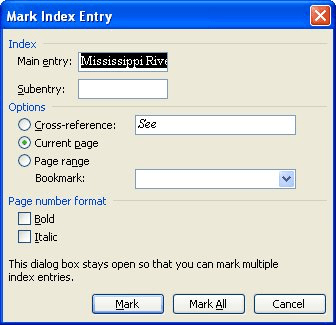
Figure 1. The Mark Index Entry dialog box.
Word also allows you to create index subentries. These are index entries that are subordinate to other index entries, and generally appear indented under the main index entry. To insert an index subentry, follow these steps:
WordTips is your source for cost-effective Microsoft Word training. (Microsoft Word is the most popular word processing software in the world.) This tip (1899) applies to Microsoft Word 97, 2000, 2002, and 2003. You can find a version of this tip for the ribbon interface of Word (Word 2007 and later) here: Creating an Index Entry.

Do More in Less Time! An easy-to-understand guide to the more advanced features available in the Microsoft 365 version of Word. Enhance the quality of your documents and boost productivity in any field with this in-depth resource. Complete your Word-related tasks more efficiently as you unlock lesser-known tools and learn to quickly access the features you need. Check out Microsoft 365 Word For Professionals For Dummies today!
You've probably seen an index where an entry says something like "Obsidian: See igneous rock." This sort of ...
Discover MoreWord provides many options for creating indexes. One option allows you to specify that the index contain only entries ...
Discover MoreAdding an index to a document is an easy task. There are a couple of ways you can do it, as described in this tip.
Discover MoreFREE SERVICE: Get tips like this every week in WordTips, a free productivity newsletter. Enter your address and click "Subscribe."
2019-10-02 12:33:57
I have a bulleted list with heading XXX. Each XXX item has an index entry of the form XE "<item>:YYY"., where all YYY s are the same. I want to have an index entry for YYY with a subentry for each item. I can't find a way to do this without doing a lot of cut and paste to create the entries without using the dialog. Any suggestions?
2019-03-05 13:33:21
Gaines Jackson
Can you email me the steps to follow to index a book that I have written in microsoft word 2007
Got a version of Word that uses the menu interface (Word 97, Word 2000, Word 2002, or Word 2003)? This site is for you! If you use a later version of Word, visit our WordTips site focusing on the ribbon interface.
Visit the WordTips channel on YouTube

FREE SERVICE: Get tips like this every week in WordTips, a free productivity newsletter. Enter your address and click "Subscribe."
Copyright © 2026 Sharon Parq Associates, Inc.
 Please Note:
This article is written for users of the following Microsoft Word versions: 97, 2000, 2002, and 2003. If you are using a later version (Word 2007 or later), this tip may not work for you. For a version of this tip written specifically for later versions of Word, click here:
Please Note:
This article is written for users of the following Microsoft Word versions: 97, 2000, 2002, and 2003. If you are using a later version (Word 2007 or later), this tip may not work for you. For a version of this tip written specifically for later versions of Word, click here: 
Comments