
Please Note: This article is written for users of the following Microsoft Word versions: 97, 2000, 2002, and 2003. If you are using a later version (Word 2007 or later), this tip may not work for you. For a version of this tip written specifically for later versions of Word, click here: Getting Audible Feedback.
If you are using a multimedia computer (you know—the type that has more bells and whistles than your home stereo system), then you can configure Word so it makes noises. Granted, every version of Word makes an obnoxious ding whenever you press the wrong key or try to do something it doesn't like, but you can expand the auditory experience to an even wider array of obnoxious noises.
To set up Word to use audible feedback, follow these steps:
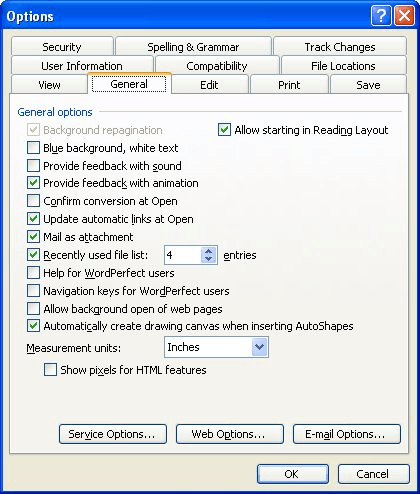
Figure 1. The General tab of the Options dialog box.
You have now enabled the use of sounds. If you want to change the sounds Word uses, then do your tweaking in the Sounds applet of the Control Panel. (This is within Windows, not in Word itself.)
WordTips is your source for cost-effective Microsoft Word training. (Microsoft Word is the most popular word processing software in the world.) This tip (1880) applies to Microsoft Word 97, 2000, 2002, and 2003. You can find a version of this tip for the ribbon interface of Word (Word 2007 and later) here: Getting Audible Feedback.
Learning Made Easy! Quickly teach yourself how to format, publish, and share your content using Word 2021 or Microsoft 365. With Step by Step, you set the pace, building and practicing the skills you need, just when you need them! Check out Microsoft Word Step by Step today!
Tired of the task pane appearing every time you start Word? Here's how to get rid of it.
Discover MoreYou already know that Word allows you to customize the tools on your toolbars. You may not have known that it also allows ...
Discover MoreYou get your document set up just the way you want it, and then notice that all of a sudden Word doesn't show any top or ...
Discover MoreFREE SERVICE: Get tips like this every week in WordTips, a free productivity newsletter. Enter your address and click "Subscribe."
There are currently no comments for this tip. (Be the first to leave your comment—just use the simple form above!)
Got a version of Word that uses the menu interface (Word 97, Word 2000, Word 2002, or Word 2003)? This site is for you! If you use a later version of Word, visit our WordTips site focusing on the ribbon interface.
Visit the WordTips channel on YouTube

FREE SERVICE: Get tips like this every week in WordTips, a free productivity newsletter. Enter your address and click "Subscribe."
Copyright © 2026 Sharon Parq Associates, Inc.
 Please Note:
This article is written for users of the following Microsoft Word versions: 97, 2000, 2002, and 2003. If you are using a later version (Word 2007 or later), this tip may not work for you. For a version of this tip written specifically for later versions of Word, click here:
Please Note:
This article is written for users of the following Microsoft Word versions: 97, 2000, 2002, and 2003. If you are using a later version (Word 2007 or later), this tip may not work for you. For a version of this tip written specifically for later versions of Word, click here: 
Comments