
All versions of Word support frames, but not all of them support text boxes. There may be times when you want to convert a text box to a frame. For instance, you might be preparing your document to be used on an older version of Word, or you need to take advantage of things you can do with frames that you can't do with text boxes. To make the conversion, follow these steps:
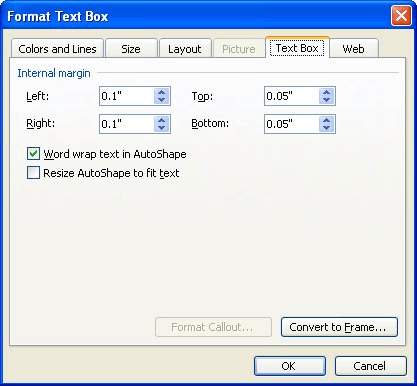
Figure 1. The Text Box tab of the Format Text Box dialog box.
WordTips is your source for cost-effective Microsoft Word training. (Microsoft Word is the most popular word processing software in the world.) This tip (1823) applies to Microsoft Word 97, 2000, 2002, and 2003.

Discover the Power of Microsoft Office This beginner-friendly guide reveals the expert tips and strategies you need to skyrocket your productivity and use Office 365 like a pro. Mastering software like Word, Excel, and PowerPoint is essential to be more efficient and advance your career. Simple lessons guide you through every step, providing the knowledge you need to get started. Check out Microsoft Office 365 For Beginners today!
Word allows you to maintain different versions of the same document all within a single document file. Here's how to ...
Discover MoreThere have been times when I've reviewed my writing and found lots of "lone letters," detached by a single space from the ...
Discover MoreTips for getting your Discussion started.
Discover MoreFREE SERVICE: Get tips like this every week in WordTips, a free productivity newsletter. Enter your address and click "Subscribe."
There are currently no comments for this tip. (Be the first to leave your comment—just use the simple form above!)
Got a version of Word that uses the menu interface (Word 97, Word 2000, Word 2002, or Word 2003)? This site is for you! If you use a later version of Word, visit our WordTips site focusing on the ribbon interface.
Visit the WordTips channel on YouTube

FREE SERVICE: Get tips like this every week in WordTips, a free productivity newsletter. Enter your address and click "Subscribe."
Copyright © 2026 Sharon Parq Associates, Inc.

Comments