
The status bar is the area at the bottom of the Word window that indicates information about the current document. It displays information about what page you are on, as well as your line number on the page and character number on the line. It also shows information about which editing toggles you have turned on. If you need more room to view a document, or you don't need the information provided by the status bar, you can turn it off. To control display of the status bar, follow these steps if you are using a version of Word prior to Word 2007:
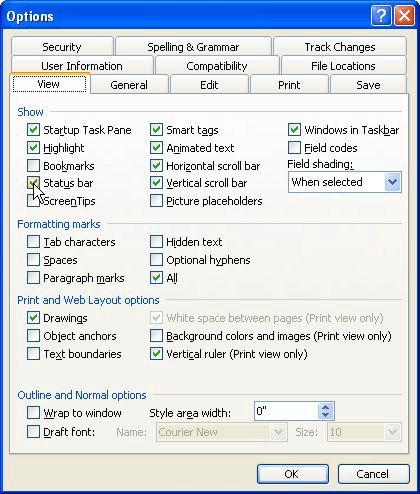
Figure 1. The View tab of the Options dialog box.
WordTips is your source for cost-effective Microsoft Word training. (Microsoft Word is the most popular word processing software in the world.) This tip (1202) applies to Microsoft Word 97, 2000, 2002, and 2003.
Learning Made Easy! Quickly teach yourself how to format, publish, and share your content using Word 2021 or Microsoft 365. With Step by Step, you set the pace, building and practicing the skills you need, just when you need them! Check out Microsoft Word Step by Step today!
Want to see how your document will look before it's printed? Or, do you want to see what things will look like if you put ...
Discover MoreNeed to work with two different parts of a document at the same time? The answer is to rely on Word's ability to display ...
Discover MoreHow to find your setting information in Word.
Discover MoreFREE SERVICE: Get tips like this every week in WordTips, a free productivity newsletter. Enter your address and click "Subscribe."
There are currently no comments for this tip. (Be the first to leave your comment—just use the simple form above!)
Got a version of Word that uses the menu interface (Word 97, Word 2000, Word 2002, or Word 2003)? This site is for you! If you use a later version of Word, visit our WordTips site focusing on the ribbon interface.
Visit the WordTips channel on YouTube

FREE SERVICE: Get tips like this every week in WordTips, a free productivity newsletter. Enter your address and click "Subscribe."
Copyright © 2026 Sharon Parq Associates, Inc.

Comments