
Please Note: This article is written for users of the following Microsoft Word versions: 97, 2000, 2002, and 2003. If you are using a later version (Word 2007 or later), this tip may not work for you. For a version of this tip written specifically for later versions of Word, click here: Inserting a Non-Breaking Hyphen.
When Word calculates line length and wraps text to the next line, it tries to break the line at a space or a hyphen—a dash. Sometimes, however, you may not want Word to break a line at a dash. For instance, dashes are used in telephone numbers, and you might not want a line to break in the middle of a telephone number.
The answer to this dilemma is to use non-breaking hyphens instead of regular dashes when you don't want Word to break a line at the hyphen. To do this, hold down the Ctrl and Shift keys as you type the dash (this is the same as typing Ctrl and an underscore). Word will then not break the line at that point.
You can also insert a non-breaking hyphen by following these steps:
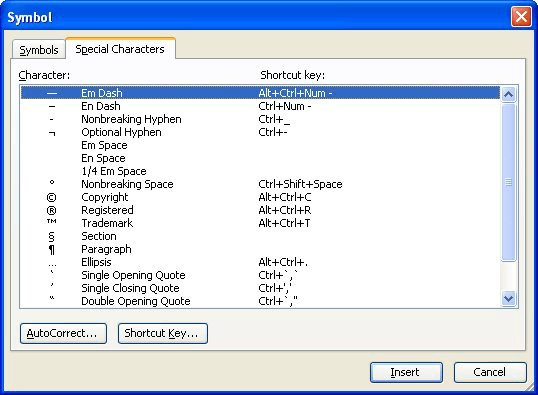
Figure 1. The Special Characters tab of the Symbol dialog box.
WordTips is your source for cost-effective Microsoft Word training. (Microsoft Word is the most popular word processing software in the world.) This tip (1116) applies to Microsoft Word 97, 2000, 2002, and 2003. You can find a version of this tip for the ribbon interface of Word (Word 2007 and later) here: Inserting a Non-Breaking Hyphen.
Learning Made Easy! Quickly teach yourself how to format, publish, and share your content using Word 2021 or Microsoft 365. With Step by Step, you set the pace, building and practicing the skills you need, just when you need them! Check out Microsoft Word Step by Step today!
Need to keep notes about a document, but you don't want others to see those notes either on-screen or on-paper? Here's an ...
Discover MoreNeed to force Word to move text to the top of the next page? It's easy when you use the keyboard shortcut for a page break.
Discover MoreNeed to swap two adjacent paragraphs? Your editing arsenal can include a command to do this is you use the macro in this tip.
Discover MoreFREE SERVICE: Get tips like this every week in WordTips, a free productivity newsletter. Enter your address and click "Subscribe."
2019-11-09 02:51:56
Saurabh S. Khandelwal
Thanks.
2019-11-05 19:16:30
J Diddy
Not sure if I can trust this tip, as the title contains a breaking hyphen.
2019-02-26 03:33:12
Vaji
Hi, thanks Mr. Wyatt, it was a great solution for me . I was really stacked to give a answer our office automation users.
2019-01-08 12:22:18
James
Allen, Thanks for this tip, but how would you do using VBA) ? what is the ASCII code (or equivalent) to do this programmatically?
Got a version of Word that uses the menu interface (Word 97, Word 2000, Word 2002, or Word 2003)? This site is for you! If you use a later version of Word, visit our WordTips site focusing on the ribbon interface.
Visit the WordTips channel on YouTube

FREE SERVICE: Get tips like this every week in WordTips, a free productivity newsletter. Enter your address and click "Subscribe."
Copyright © 2026 Sharon Parq Associates, Inc.
 Please Note:
This article is written for users of the following Microsoft Word versions: 97, 2000, 2002, and 2003. If you are using a later version (Word 2007 or later), this tip may not work for you. For a version of this tip written specifically for later versions of Word, click here:
Please Note:
This article is written for users of the following Microsoft Word versions: 97, 2000, 2002, and 2003. If you are using a later version (Word 2007 or later), this tip may not work for you. For a version of this tip written specifically for later versions of Word, click here: 
Comments