
There are several reasons why you would want to remove an AutoText entry. The biggest reason is that you just don't need the entry any more. For instance, you may have defined a group of AutoText entries for a particular job you were doing. When the job is over, it is best to remove the AutoText entries. To remove AutoText entries, follow these steps:
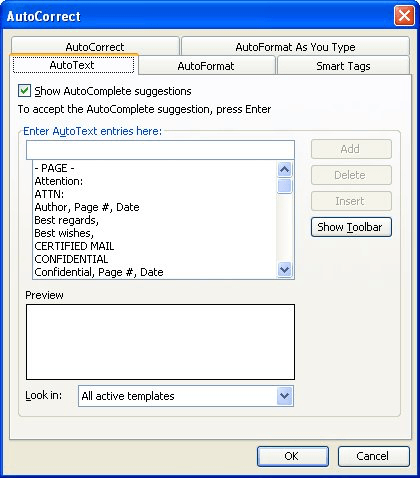
Figure 1. The AutoText tab of the AutoCorrect dialog box.
WordTips is your source for cost-effective Microsoft Word training. (Microsoft Word is the most popular word processing software in the world.) This tip (1105) applies to Microsoft Word 97, 2000, 2002, and 2003.

Do More in Less Time! An easy-to-understand guide to the more advanced features available in the Microsoft 365 version of Word. Enhance the quality of your documents and boost productivity in any field with this in-depth resource. Complete your Word-related tasks more efficiently as you unlock lesser-known tools and learn to quickly access the features you need. Check out Microsoft 365 Word For Professionals For Dummies today!
AutoText entries can make your writing more productive, if used effectively. Because of this, it can be advantageous for ...
Discover MoreWant to get more organized with your AutoText entries? Here's how you can take advantage of the organizational features ...
Discover MoreOnce you've created an AutoText entry, you may believe that it is "set in stone" and cannot be changed. Not so! You can ...
Discover MoreFREE SERVICE: Get tips like this every week in WordTips, a free productivity newsletter. Enter your address and click "Subscribe."
There are currently no comments for this tip. (Be the first to leave your comment—just use the simple form above!)
Got a version of Word that uses the menu interface (Word 97, Word 2000, Word 2002, or Word 2003)? This site is for you! If you use a later version of Word, visit our WordTips site focusing on the ribbon interface.
Visit the WordTips channel on YouTube

FREE SERVICE: Get tips like this every week in WordTips, a free productivity newsletter. Enter your address and click "Subscribe."
Copyright © 2026 Sharon Parq Associates, Inc.

Comments