
To get the most out of AutoText you will want to customize it to help with words and phrases that you use most. You can add AutoText entries in this manner:
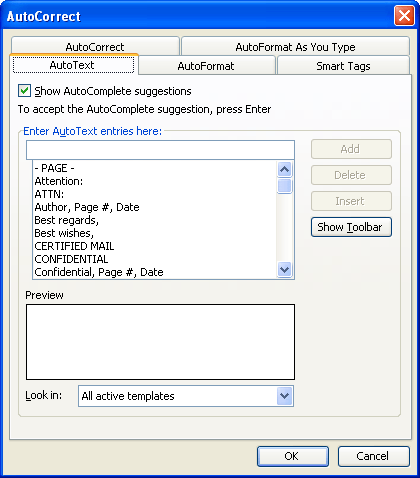
Figure 1. The AutoText tab of the AutoCorrect dialog box.
After working with AutoText for a while, you many need to change some of your entries. Fortunately, Word makes it real easy to change your AutoText entries. Follow the steps outlined for adding entries, and when you click on Add, you will be asked if you want to redefine the AutoText entry. Click on Yes and you will be able to use the new entry.
WordTips is your source for cost-effective Microsoft Word training. (Microsoft Word is the most popular word processing software in the world.) This tip (1104) applies to Microsoft Word 97, 2000, 2002, and 2003.
The First and Last Word on Word! Bestselling For Dummies author Dan Gookin puts his usual fun and friendly candor back to work to show you how to navigate Word 2019. Spend more time working and less time trying to figure it all out! Check out Word 2019 For Dummies today!
Want to get more organized with your AutoText entries? Here's how you can take advantage of the organizational features ...
Discover MoreAutoText is a very useful tool. But what if the text you want to use when creating an AutoText entry is protected and you ...
Discover MoreWant to categorize your AutoText entries? You can easily do so using the techniques described in this tip.
Discover MoreFREE SERVICE: Get tips like this every week in WordTips, a free productivity newsletter. Enter your address and click "Subscribe."
There are currently no comments for this tip. (Be the first to leave your comment—just use the simple form above!)
Got a version of Word that uses the menu interface (Word 97, Word 2000, Word 2002, or Word 2003)? This site is for you! If you use a later version of Word, visit our WordTips site focusing on the ribbon interface.
Visit the WordTips channel on YouTube

FREE SERVICE: Get tips like this every week in WordTips, a free productivity newsletter. Enter your address and click "Subscribe."
Copyright © 2026 Sharon Parq Associates, Inc.

Comments