
Please Note: This article is written for users of the following Microsoft Word versions: 97, 2000, 2002, and 2003. If you are using a later version (Word 2007 or later), this tip may not work for you. For a version of this tip written specifically for later versions of Word, click here: Changing the Types of Numbers in a Numbered List.
When you are working with numbered lists, Word uses Arabic numerals, by default, to number the items. This number is followed by a period. You can change the numbering scheme Word uses to number your lists. Any of the following numbering types can be selected:
| Type | Selection | |
|---|---|---|
| Arabic | 1, 2, 3, 4 | |
| Uppercase Roman | I, II, III, IV | |
| Lowercase Roman | i, ii, iii, iv | |
| Uppercase Alphabetic | A, B, C, D | |
| Lowercase Alphabetic | a, b, c, d | |
| Ordinals | 1st, 2nd, 3rd, 4th | |
| Word Numbers | One, Two, Three, Four | |
| Word Ordinals | First, Second, Third, Fourth | |
| Leading Zeroes | 01, 02, 03, 04 |
You can also change the type of character that follows the numbered list number. It can be either a period (the default), a colon, or a right parenthesis. You can also specify that there should be no character following the number. To change the numbering type and the character following the number, follow these steps:

Figure 1. The Numbered tab of the Bullets and Numbering dialog box.
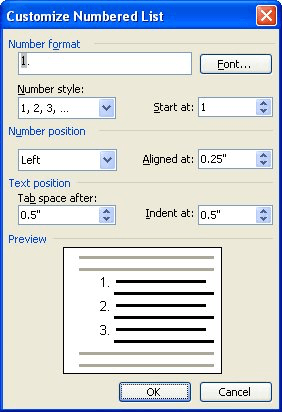
Figure 2. The Customize Numbered List dialog box.
WordTips is your source for cost-effective Microsoft Word training. (Microsoft Word is the most popular word processing software in the world.) This tip (1078) applies to Microsoft Word 97, 2000, 2002, and 2003. You can find a version of this tip for the ribbon interface of Word (Word 2007 and later) here: Changing the Types of Numbers in a Numbered List.

Create Custom Apps with VBA! Discover how to extend the capabilities of Office 365 applications with VBA programming. Written in clear terms and understandable language, the book includes systematic tutorials and contains both intermediate and advanced content for experienced VB developers. Designed to be comprehensive, the book addresses not just one Office application, but the entire Office suite. Check out Mastering VBA for Microsoft Office 365 today!
Have you ever been frustrated by the automatic numbering feature in Word? You are not alone. Fortunately, there are a few ...
Discover MoreWhen you apply bullet formatting to paragraphs, Word allows you to choose from a variety of different bullets. If you ...
Discover MoreAdding numbered lists to your document is a snap; Word provides tools to add them immediately. What Word doesn't do is ...
Discover MoreFREE SERVICE: Get tips like this every week in WordTips, a free productivity newsletter. Enter your address and click "Subscribe."
There are currently no comments for this tip. (Be the first to leave your comment—just use the simple form above!)
Got a version of Word that uses the menu interface (Word 97, Word 2000, Word 2002, or Word 2003)? This site is for you! If you use a later version of Word, visit our WordTips site focusing on the ribbon interface.
Visit the WordTips channel on YouTube

FREE SERVICE: Get tips like this every week in WordTips, a free productivity newsletter. Enter your address and click "Subscribe."
Copyright © 2026 Sharon Parq Associates, Inc.
 Please Note:
This article is written for users of the following Microsoft Word versions: 97, 2000, 2002, and 2003. If you are using a later version (Word 2007 or later), this tip may not work for you. For a version of this tip written specifically for later versions of Word, click here:
Please Note:
This article is written for users of the following Microsoft Word versions: 97, 2000, 2002, and 2003. If you are using a later version (Word 2007 or later), this tip may not work for you. For a version of this tip written specifically for later versions of Word, click here: 
Comments