
Word includes a full-screen mode that minimizes the extraneous information (tools, menus, etc.) displayed on the screen. The normal way of switching to full-screen mode is to choose View | Full Screen. You exit the mode by either clicking the Close Full Screen button or by pressing Esc.
If you'd like to use a keyboard shortcut to enter full-screen mode, one method is to press Alt+V, then U. (These are the keystrokes to activate the proper menu choices.) To create your own shortcut, follow these steps:
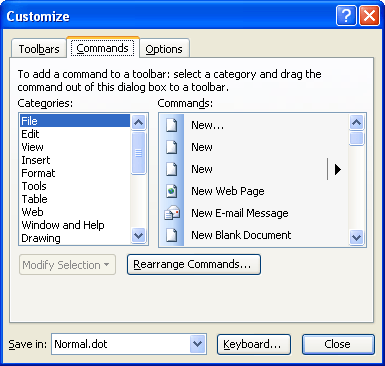
Figure 1. The Customize dialog box.
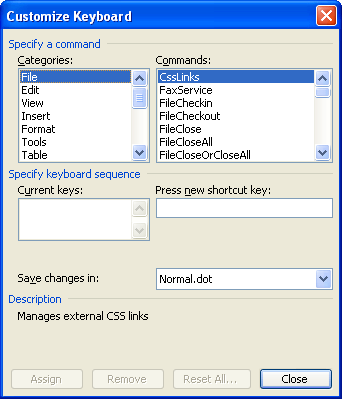
Figure 2. The Customize Keyboard dialog box.
One interesting thing is that when you assign they shortcut in this manner, the same key is used to switch to and from full-screen mode. This is possible because the command you assign to the shortcut is actually a toggle.
WordTips is your source for cost-effective Microsoft Word training. (Microsoft Word is the most popular word processing software in the world.) This tip (102) applies to Microsoft Word 97, 2000, 2002, and 2003.

Discover the Power of Microsoft Office This beginner-friendly guide reveals the expert tips and strategies you need to skyrocket your productivity and use Office 365 like a pro. Mastering software like Word, Excel, and PowerPoint is essential to be more efficient and advance your career. Simple lessons guide you through every step, providing the knowledge you need to get started. Check out Microsoft Office 365 For Beginners today!
When working with multiple documents at the same time, you often have a need to move from one document to another. Here's ...
Discover MoreWant to return a paragraph's formatting back to it's pristine, unaltered state? You can do so by using the shortcut ...
Discover MoreThere are scores of shortcut keys defined in Word. If you want to discover what all those shortcut keys are, here are a ...
Discover MoreFREE SERVICE: Get tips like this every week in WordTips, a free productivity newsletter. Enter your address and click "Subscribe."
2016-11-20 17:31:25
Judy Newlin
I am trying to make my page larger..
Windows 2013. Have to say "what were you thinking" with some of the changes to this? I thought you could go back to Windows 10 if you have a problem...but do NOT know how to do that. Judy Newlin
Got a version of Word that uses the menu interface (Word 97, Word 2000, Word 2002, or Word 2003)? This site is for you! If you use a later version of Word, visit our WordTips site focusing on the ribbon interface.
Visit the WordTips channel on YouTube

FREE SERVICE: Get tips like this every week in WordTips, a free productivity newsletter. Enter your address and click "Subscribe."
Copyright © 2026 Sharon Parq Associates, Inc.

Comments